
Website Management Assistant creates, restores, and backs up mssql databases
Published: 2012-08-09
First, please ensure that your server uses our company's default environment configuration and the MSSQLSERVER service is running. If you configured the environment manually, the following operations may report errors or fail.
Mssql Creation:
1.Open our company's Website Management Assistant and click “Create mssql”

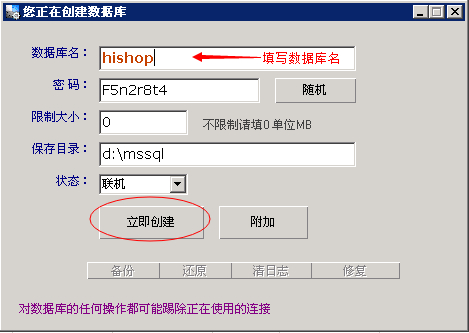
2.Enter the mssql database name. It cannot duplicate the name of another database that has already been created. To ensure password complexity, you can use the password automatically generated by the system without modifying it. Then click “Create Now”.
Mssql Restoration:
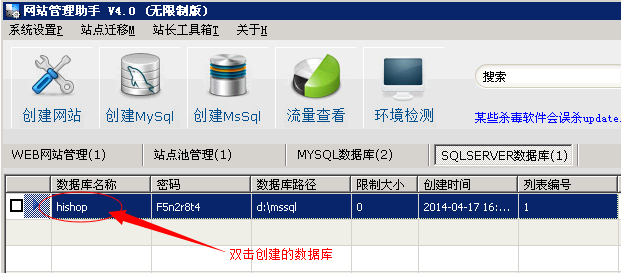
1.Double-click the mssql database you just created.
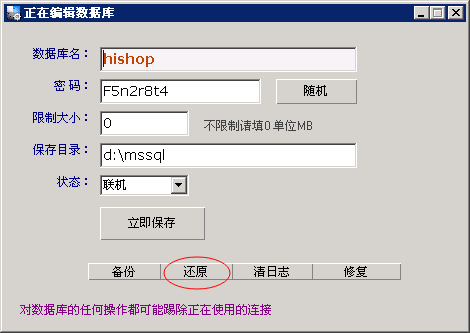
2.Click “Restore”. In the pop-up window, select the bak backup file to be restored, (Before the operation, please check whether the original database contains data you need. Please back up important data before restoring to avoid overwriting important data.) Click “Open” to restore the database. If the backup file is large, the restore may take a long time; please wait patiently.
If an error similar to the following appears:

Please check and verify. You need to grant mssqluser Full Control permissions on the directory where the bak is placed and on the bak file, or place the bak file under d:\mssql. This directory
has permissions already added by default.
Mssql Backup:
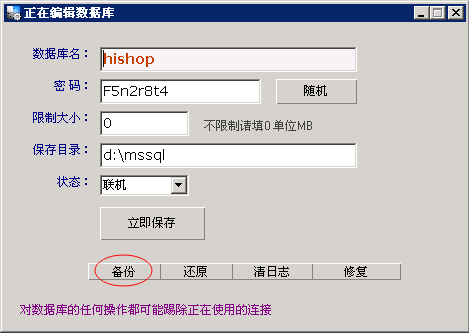
Double-click the database to be backed up, open the operation panel, click “Backup”, select the location to save in the pop-up window, and click “OK” to complete the backup. If the database is large, the backup may take a long time.
If you encounter an error when performing the operation yourself, or still have problems after restoring, please submit a ticket and let our technical engineers check it for you.
```