
Website Management Assistant creates, imports/restores, and exports/backs up mysql databases.
Published: 2012-08-09
First, please make sure that your server uses our company's default environment configuration. If you configured the environment manually yourself, the following operations may produce errors or fail.
Mysql Creation:
1.Open our company's website management assistant and click "Create mysql"

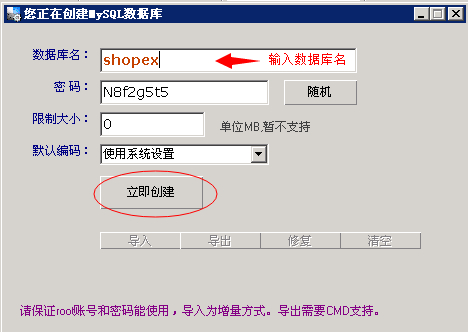
2.Enter mysql database name. If this database name has already been created, please change to an unused one. To ensure password complexity, you can use the system-generated password without modification, and do not modify the default encoding. Then click "Create Now".
Mysql Import:
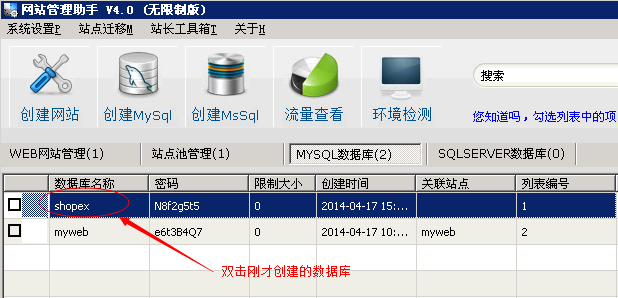
1.Double-click the just-created mysql database.
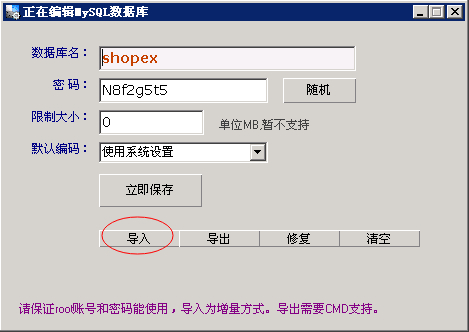
2.Click "Import", and in the opened window select the database sql file to be imported, then click Open to import the database. If the data is large, it may take some time.
Mysql Export:
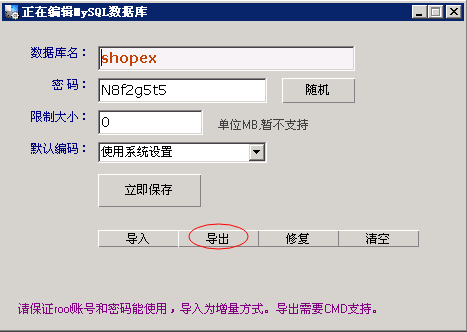
Double-click the database to be exported, open the operation panel, and click "Export". In the pop-up window, select the location to export to, save the file format as *.sql (mysql.sql), and click "Save". If the data is large, it may take some time.
If you encounter an error when performing the operations yourself, or if there are still problems after import, please submit a ticket and let our technical engineers check it for you.