
Dedicated Server/VPS Manually Create/Restore mssql2005 Database
Published: 2011-09-02
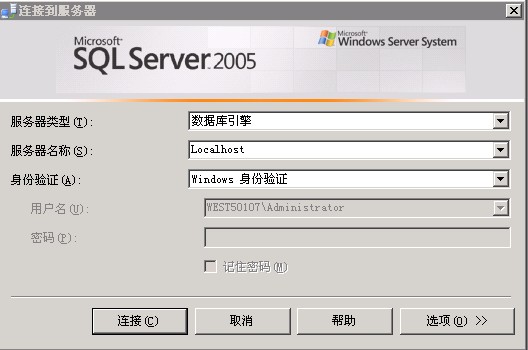
First, click “SQL Server Management Studio” on the desktop to open the sql2005 manager, click “Connect” to log in, as shown in the figure:
I. Create a new database
1. Create a new database
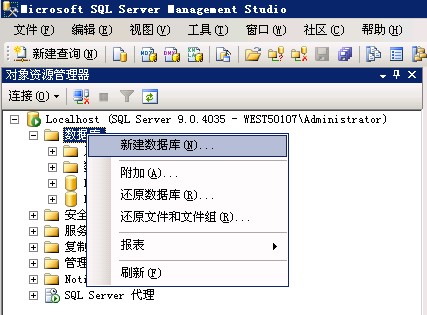
Right-click “Databases” — “New Database”, as shown in the figure:
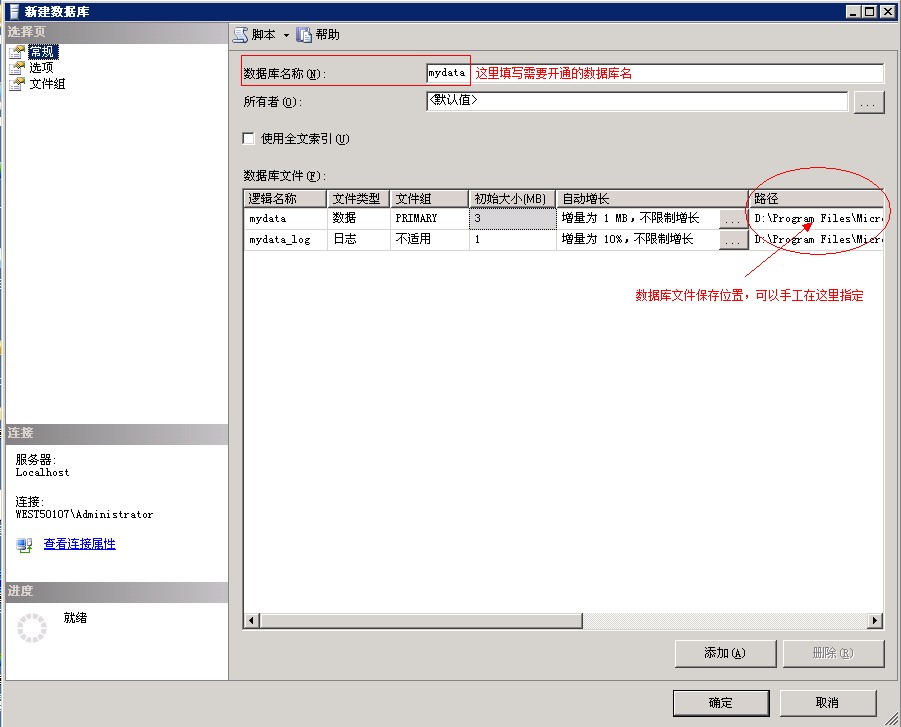
Fill in the database name, such as mydata, select the database save path. Generally, you can keep the default address, and click “OK”.
2. Create a new user
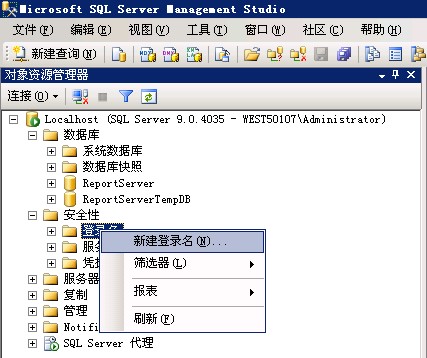
Right-click “Security” — “Logins” — “New Login”, as shown in the figure:
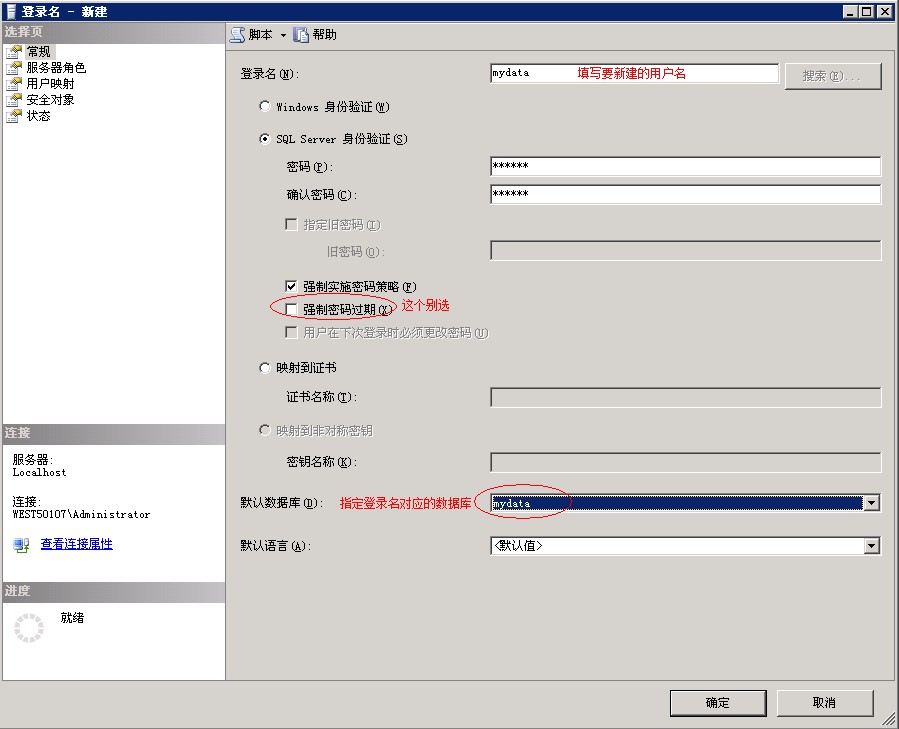
Fill in the login name, such as mydata. Select “SQL server authentication”, and enter the password. Do not select “Enforce password expiration” below. For the default database, select the database corresponding to your user login, such as mydata. As shown in the figure:
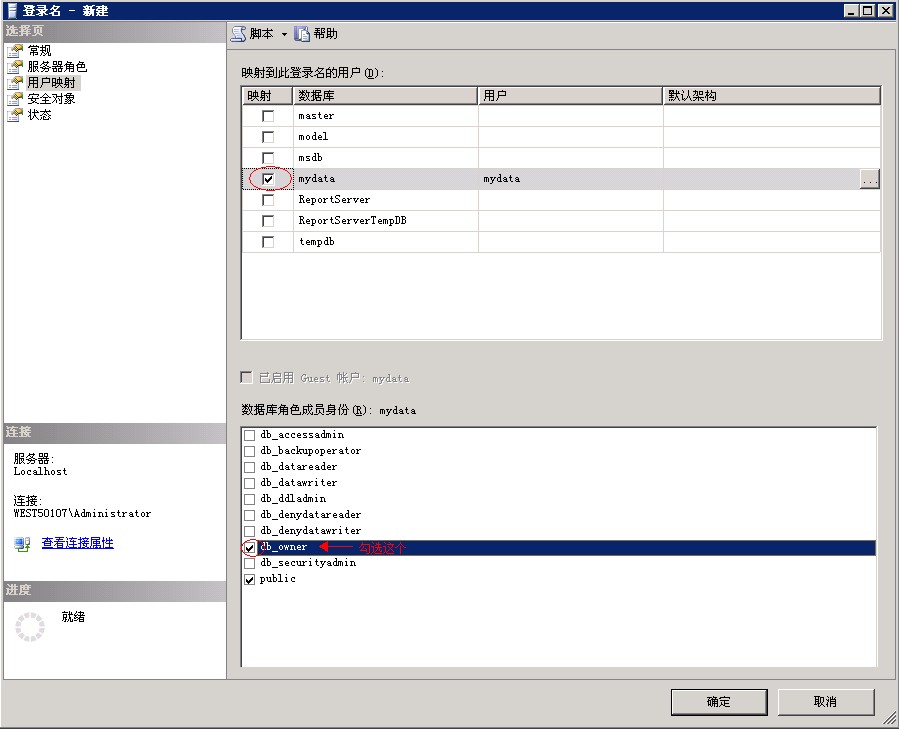
Click “User Mapping”. Under “Users mapped to this login”, check the corresponding database, such as mydata. For database role membership, check “public” and “db_owner”, and click “OK”. As shown in the figure:
At this point, creating a new database is complete.
II. Restore database
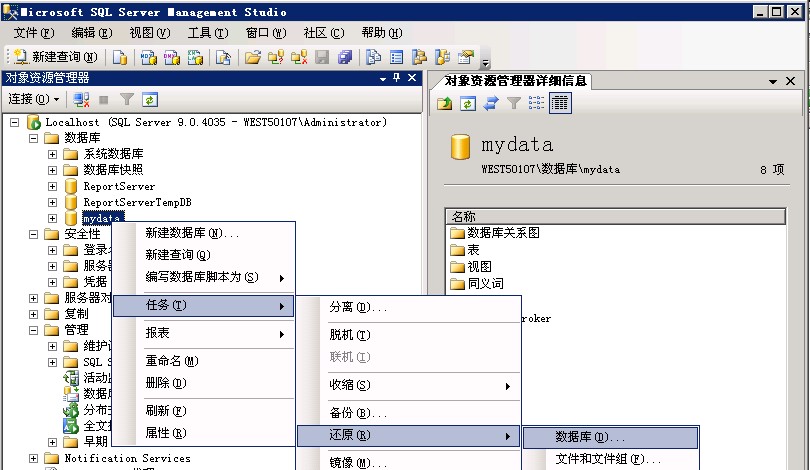
First, upload the database backup bak file to the server. It is recommended to place it in the d:\mssql directory, such as mydata.bak. Right-click the database to be restored, select “Tasks” — “Restore” — “Database”, as shown in the figure:
Note: If it is placed in another directory, be sure to first add full control permission for mssqluser to that directory; otherwise restore or backup will fail. The directory where backups are saved must also have this permission!!
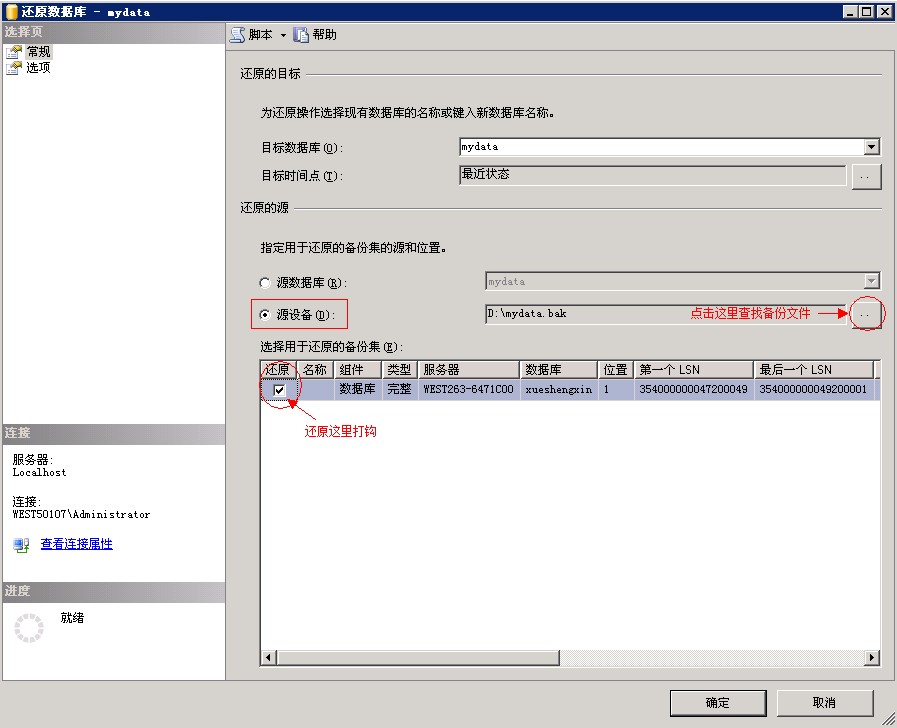
If it is not an earlier backup on this server, select “Source Device”, click the “…” on the right to find the bak file. After completion, the backup set will be displayed below; check “Restore”. As shown in the figure:
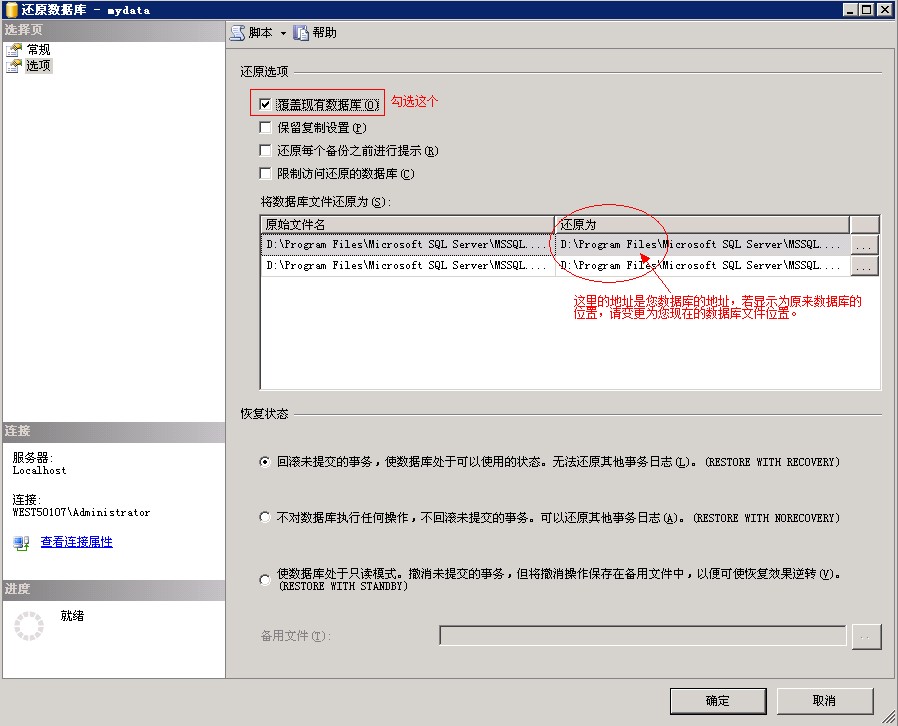
Then click “Options”, check “Overwrite the existing database”, and set the file path under “Restore the database files as:” to the current database files. Click “OK” to start restoring. If the backup is too large, the restore time will be a little longer. As shown in the figure:
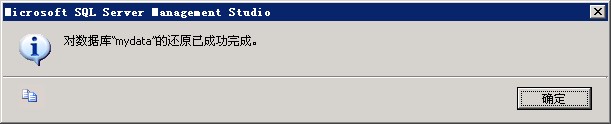
After successful restoration, the system will prompt, as shown in the figure:
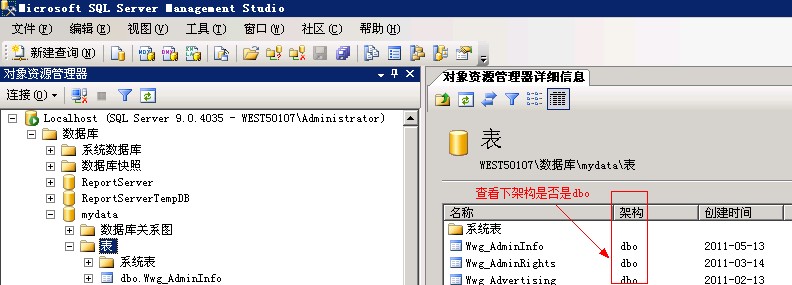
After successful restoration, please check whether the schema of the following table is dbo, as shown in the figure:
If it is the database name or another schema, such as the mydata schema, you need to go to “Security” — “Schemas” and create a new schema whose owner is dbo and whose name is mydata.
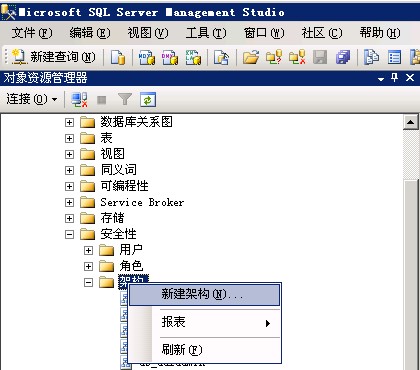
Create a new mydata schema whose owner is dbo, as shown in the figure: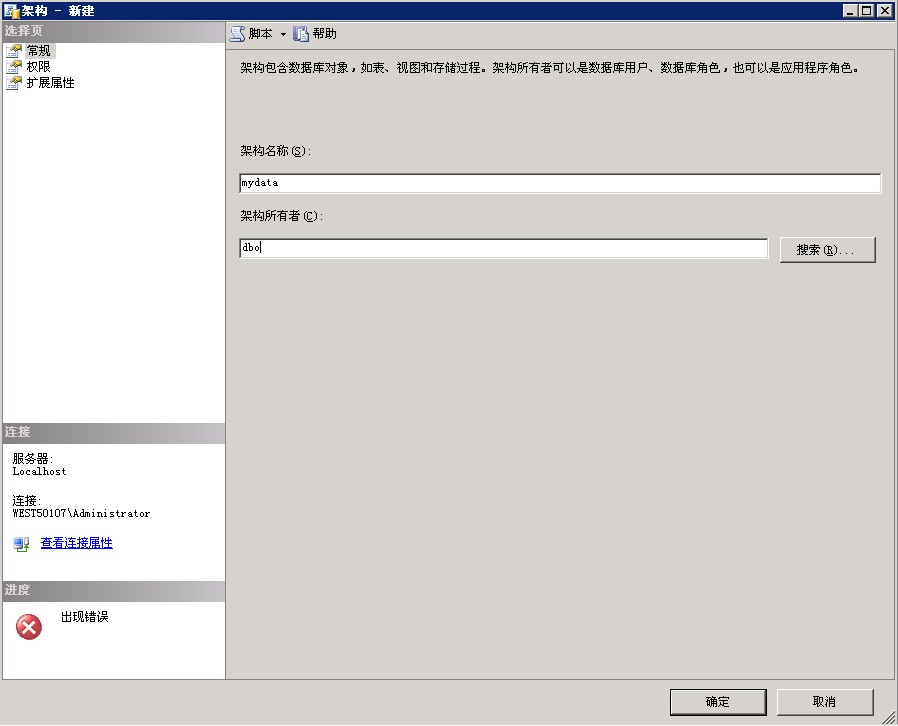
III. Attach database
First, upload your database mdf and ldf files to a directory on the server (generally do not place them on the system disk, to avoid data loss caused by system damage), for example, the d:\mssql directory, and give mssqluser full control permission for that directory.
Note: If it is placed in another directory, be sure to first add full control permission for mssqluser to that directory; otherwise restore or backup will fail. The directory where backups are saved must also have this permission!!
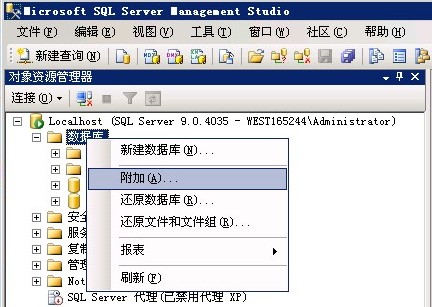
Next, right-click your database and select Attach, as shown in the figure:
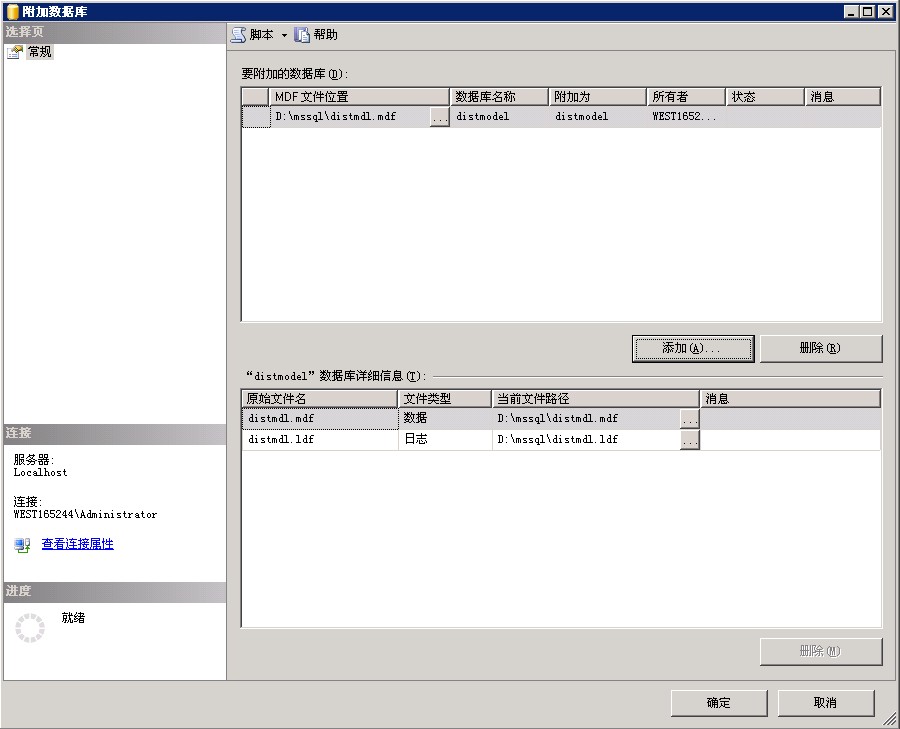
Click Add to add your mdf file. As shown in the figure:
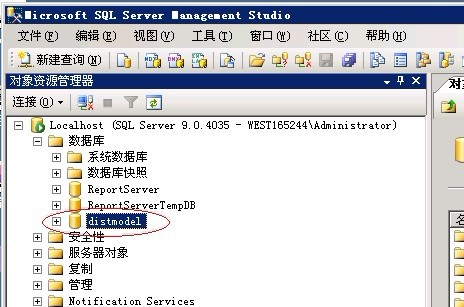
Click OK to successfully attach the database. You can see the newly attached database in Databases. As shown in the figure:
Note: If it is placed in another directory, be sure to first add full control permission for mssqluser to that directory; otherwise restore or backup will fail. The directory where backups are saved must also have this permission!!