
Xingwai System: Setting Our Company's API Domain Interface and Domain Registration Process
Published: 2011-05-23
First, set the agent username and password; this will be needed later when configuring on the 星外 platform:
1. Open our company websitewww.west.cn, and enter your username and password with our company to log in.
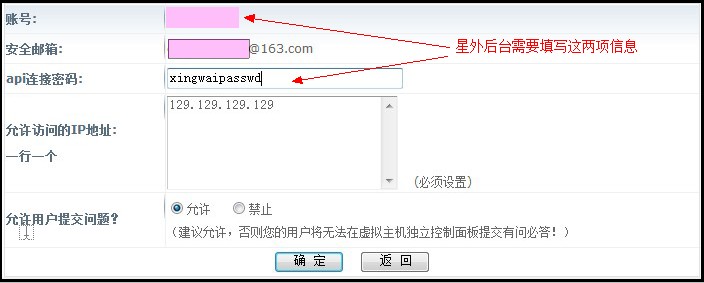
2. Click “Agent Management”—“API Interface Configuration” on the left, set your API username and password; for the allowed IP address, enter the IP of your 星外 system master control server. As shown in the figure:
Next, log in to your 星外 system management platform. The default login address is:
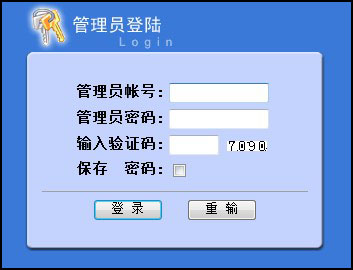
http://yourdomain/adm For example:http://www.yourdomain.com/adm
After logging in, click “Site Management”—“System Parameters”, as shown in the figure:
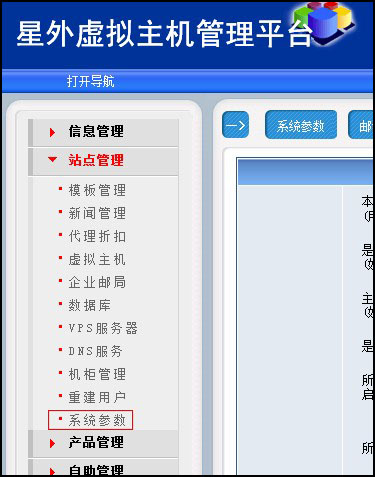
“System Parameters” has many settings; you can choose settings according to your own needs. When configuring the domain interface, first find “Domain Interface Section”—“compatible with 新网’sAPI interface”
Here you are required to enter the agent username, agent password, andAPI URL.For the agent username and password, see the password set at the beginning of the documentation.For the agent username and password, see the password set at the beginning of the documentation.API URL:http://api.west263.com. As shown in the figure:

Then click “Product Management”—“Domain Registration”, and on the right, select “API6” for all domain query interfaces and registration interfaces, as shown in the figure: 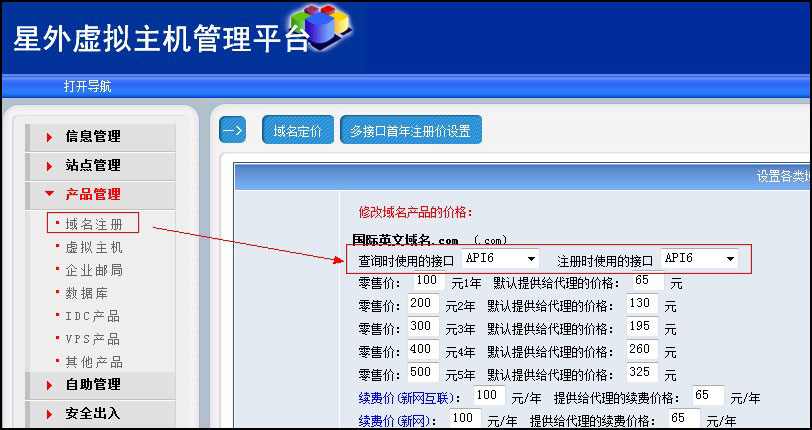
After the settings are complete, you can start registering domains. Before registering a domain, please confirm that there are sufficient funds in your account with our company; otherwise, clicking “Pay Now” will cause an error.
When registering a domain, first check whether it can be registered. For a domain that can be registered, fill in the personal information and click “Next”,
the system will prompt “Pre-registration successful, pay now>>>”. After clicking, the system will redirect to the domain management list. The domain you just registered will show “Pre-registration successful”. Click “Pay Now>>>>” on the far right, and the registration will be officially successful, as shown in the figure:
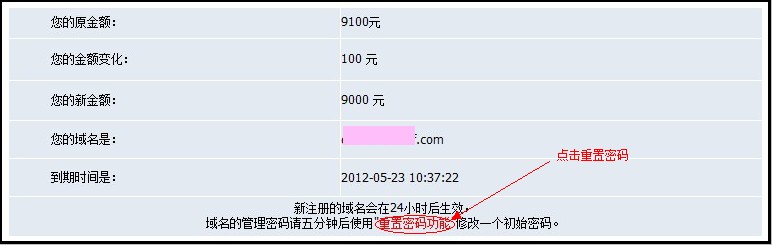
The system will prompt you with the domain expiration time and a reminder to reset the password:Newly registered domains will take effect after24 hours. For the domain management password, please wait five minutes and then use "Reset Password function"to set an initial password.Click “Reset Password function”, as shown in the figure:
After returning to the domain management list, click “Reset Password” again, and you can use the new password to log in and manage the domain. As shown in the figure:

After resetting the password, an initial password will be displayed. Click “Manage” on the right to log in to the domain management panel. As shown in the figure:

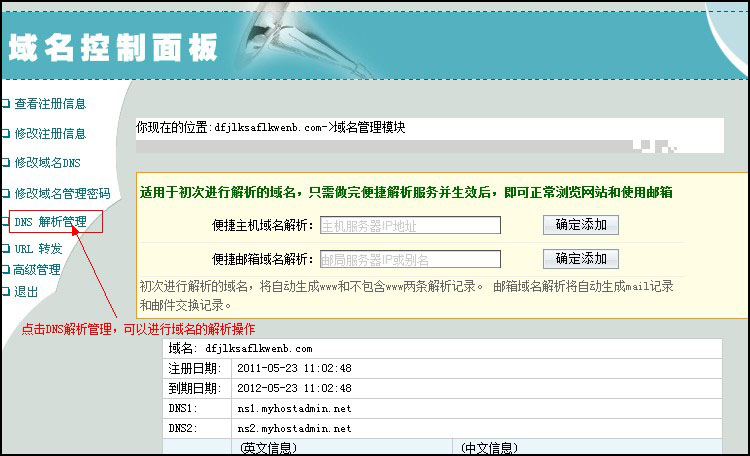
On the domain management panel interface, click "DNS Resolution Management" to perform domain resolution. As shown in the figure:
Note: The independent management panel of 星外 can also be used for domain management. The login address is: http://yourdomain/hostadm/
Error Message Interpretation:
Operation: Clicking “Pay Now” shows an error.
Error prompt: Operation failed, please contact the administrator! Code: ret=0&uaddr2-invalid
Error cause: Insufficient funds in the agent account with our company; you need to recharge with our company.