Manually attach MSSQL database to cloud server (sqlserver2000 version)
Published: 2011-02-18
First, upload your database mdf and ldf files to a directory on the server (generally do not put them on the system disk, to avoid data loss caused by system damage), for example, the d:\mssql directory, and give mssqluser Full Control permission on this directory. Note: if you place them in another directory, be sure to first add Full Control permission for mssqluser to that directory; otherwise restore or backup will fail. The directory where backups are saved must also have this permission!!
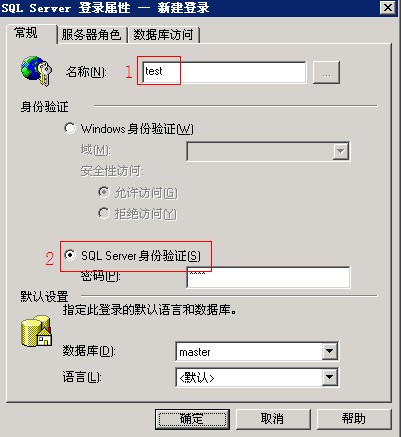
1. Open Enterprise Manager, click "Security" -- "Logins" -- "New Login", create a login user, as shown in the figure:
2. Click "Databases" -- "All Tasks" -- "Attach Database", as shown in the figure: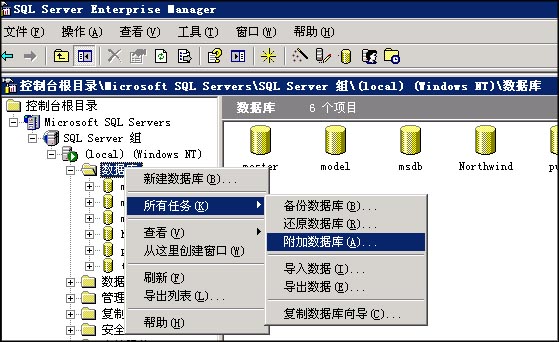
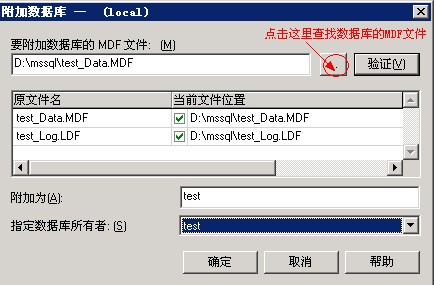
3. In the pop-up window, find your database mdf file, and make sure the database path below is preceded by a green check mark. If it is a red cross, it means there is a problem with the specified database path. After "Attach as", fill in the database name that was successfully attached, and set the database owner to the user just created, as shown in the figure:
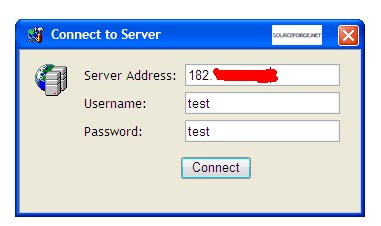
After successful attachment, you can log in to http://sqladmin.myhostadmin.net/app/connect.aspx to test whether it can connect and read/write normally. As shown in the figure: