
vps, 弹性云 manually create MSSQL database (sqlserver2000 version)
Published: 2010-03-02
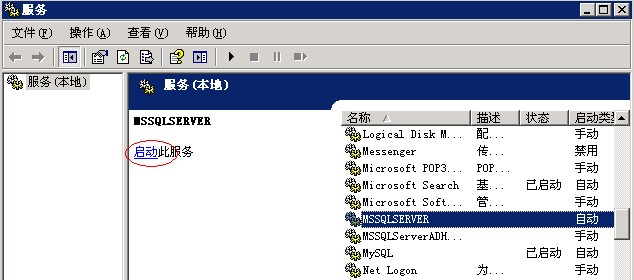
1. Our company's VPS generally have MSSQL database enabled by default. If it is stopped, you can click: Start → Run, type services.msc, find the "MSSQLSERVER" service, and click "Start", as shown in the figure:
2. Click Start → Programs → Microsoft SQL server → Enterprise Manager, open the database, and right-click "New".

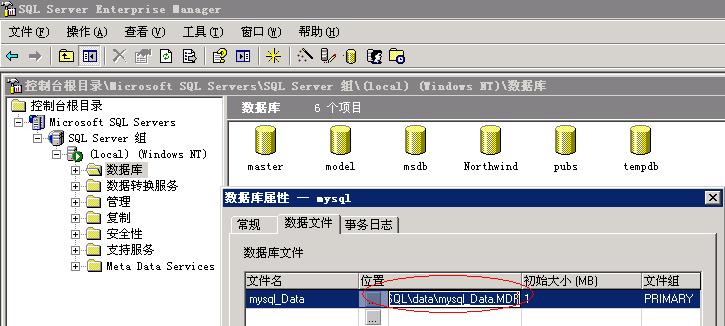
3. In Name, enter a database name by default. It is recommended to use the FTP of the newly created website plus a combination of other numbers or letters, for easy management, e.g.: myweb_mssql. After filling it in, the file name and file path will be automatically generated in the data file and transaction log. It is recommended not to set it on the system disk partition, to avoid data loss caused by system damage! As shown in the figure:
4. In the newly created data file and transaction log, there is a Restrict Growth option. If you do not want to restrict the database size, please keep the default..
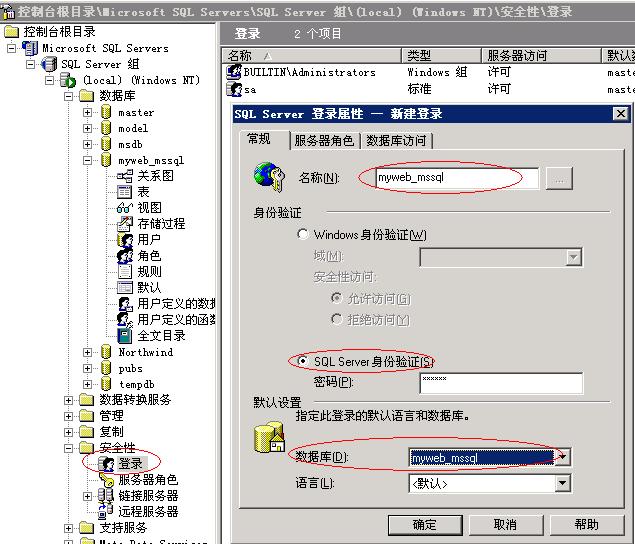
5. Then click "Security" → "Logins" below, and right-click "New Login". When creating a new login, for Login name you can enter the database name you just created; for Authentication select SQL authentication; in the Database at the bottom select the database you just created. As shown in the figure:
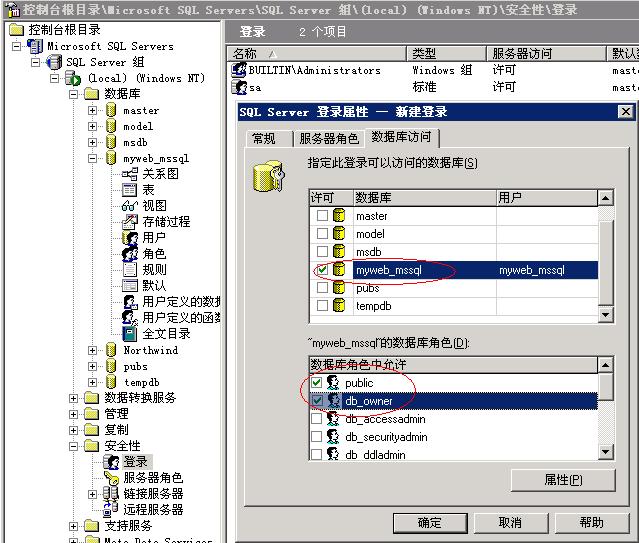
6. Server Roles do not need to be configured. Click "Database Access" and select the database you just created, and under "Database roles" check the two roles "public" and "db_owner". Click OK. As shown in the figure:
7. At this point, a database has been created. Click "Users" in your database, and you can see the user information just created in the login. The database host is your IP address. If the website is on the same server, you can use localhost. The database username is the account name just created in the login.