
Site Access FAQ
Published: 2025-04-07
1. The domain has already been bound, but it is still inaccessible. What is the reason?
(1) Check whether the domain has been resolved to 响站;
(2) After domain resolution, it generally takes 20-30 minutes for the resolution to take effect;
(3) If the domain has been resolved but still cannot be accessed, please submit a ticket, and we will resolve it for you as soon as possible.
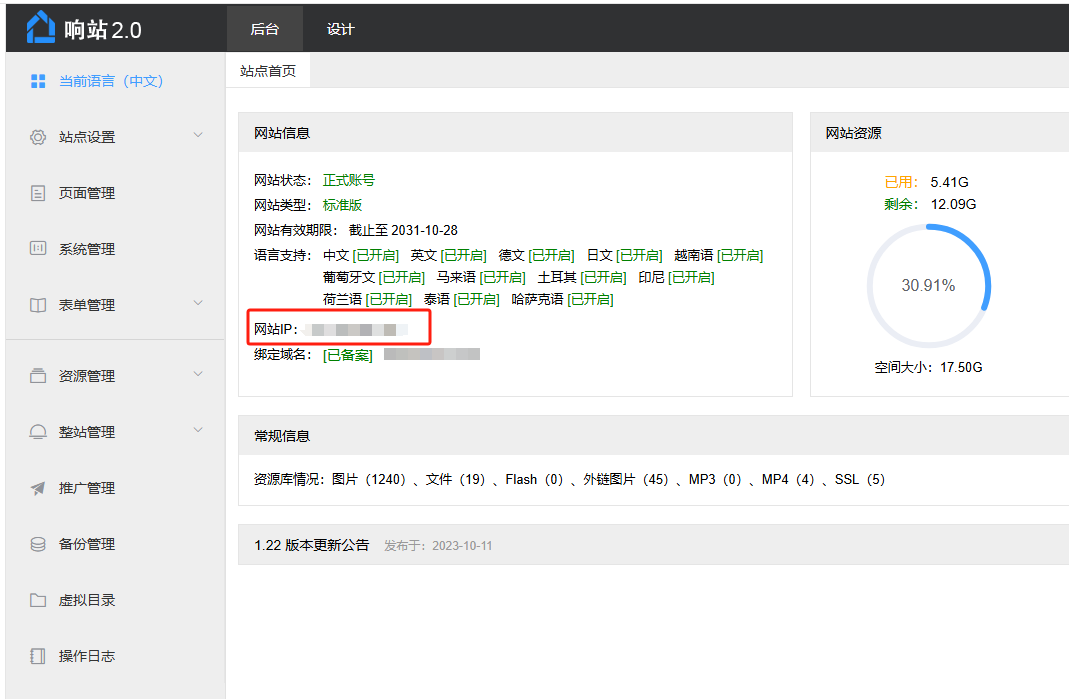
2. Where can I check the website IP?
Log in to your 刺猬响站, enter the backend site homepage, and you can check your website IP in the website information
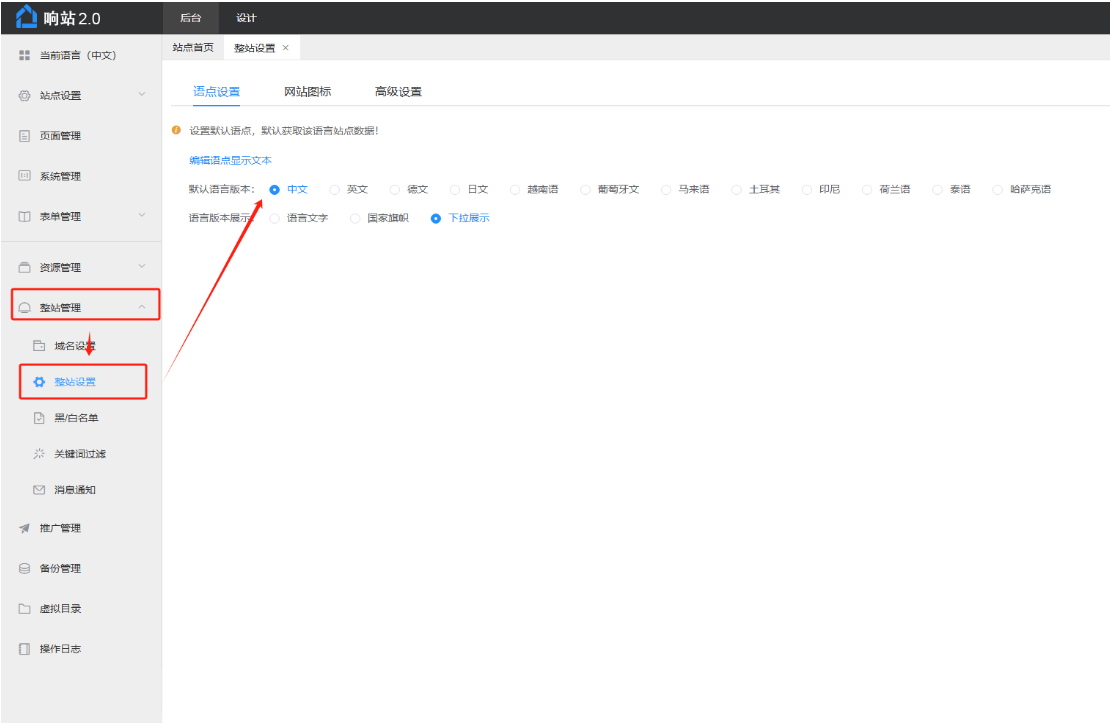
3. The website has two language versions. How can I display the English version as the main language version in front?
In [Whole Site Management] -> Whole Site Settings –> Language Point Settings , select the language version to be default.
4. What should I do if the website has problems after going online? Who should I contact to resolve them?
Provide the website information, account password, and specific situation to after-sales customer service, or directly log in to our company's website and submit a ticket, and we will provide assistance;
After submitting it to after-sales customer service, we will resolve it as soon as possible according to the requirements you submitted. Please wait patiently!
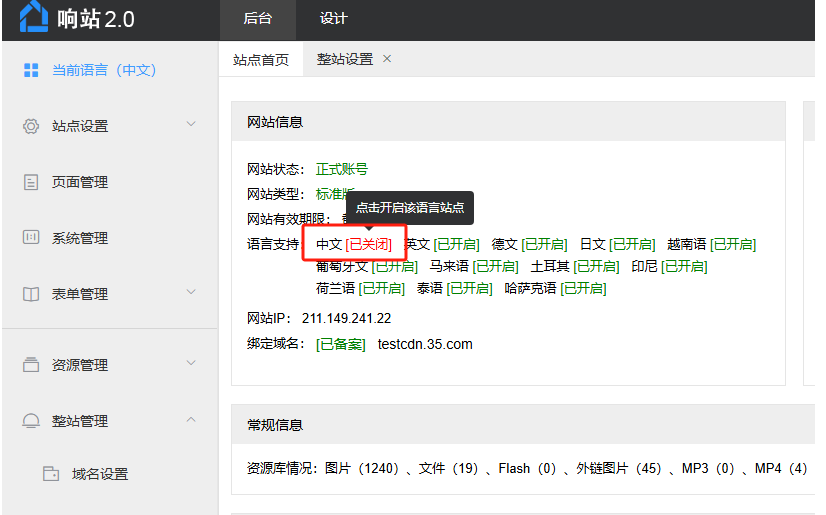
5. During a business adjustment period, can the website be closed?
The 响站 backend supports enabling/disabling the website in the form of language versions:
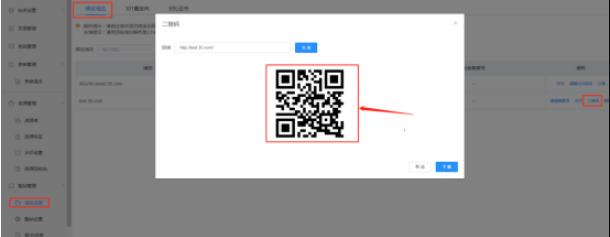
6. 刺猬响站 has already bound a domain. How is the website QR code generated?
In [Whole Site Management] -> [Domain Settings] -> Domain Binding, click QR code, and an access QR code will be automatically generated for the domain
You can also use 百度's free QR code generation tool. After entering your website URL, have it generate a URL QR code.
7. How do I add business information and filing information to the website?
Business information is displayed uniformly at the bottom of the website after being added.
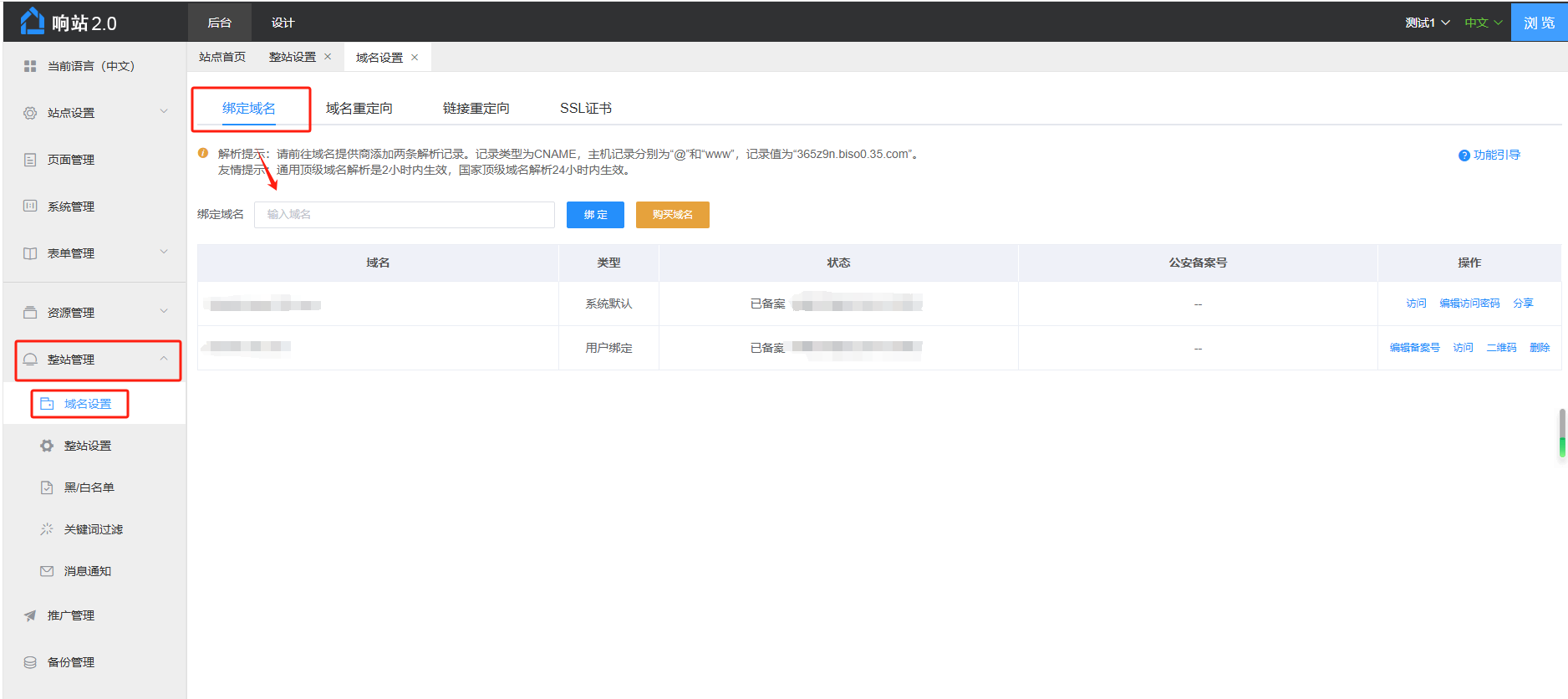
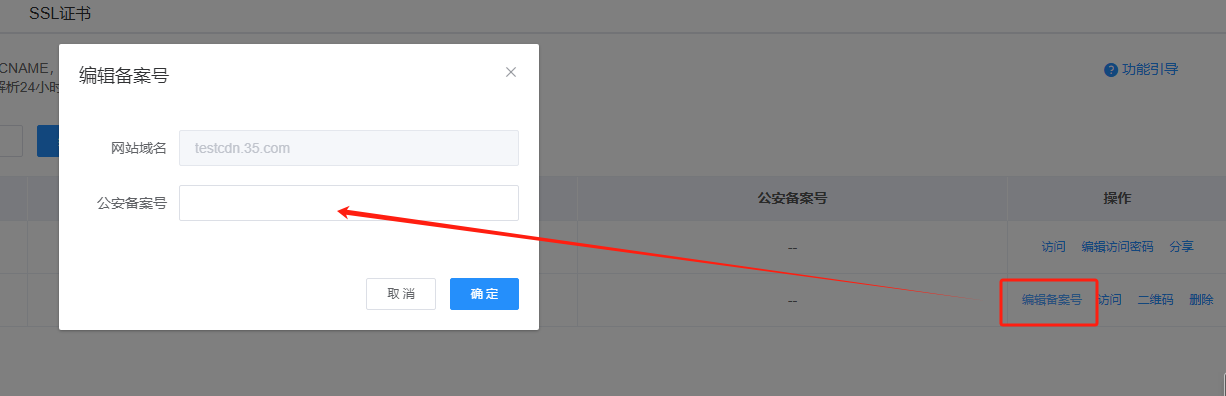
Step 1: Maintain public security filing number information: [Whole Site Management] -> [Domain Settings] -> Bound Domains. After your bound domain, click "Edit filing number, enter public security filing number".
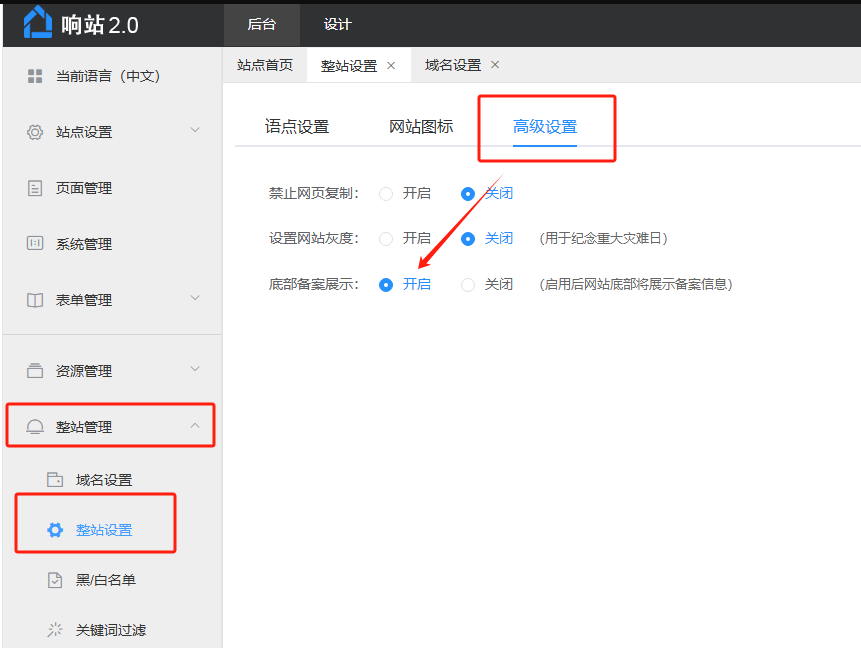
Step 2: Enable filing number display: [Whole Site Management] -> [Whole Site Settings] -> Advanced Settings, enable bottom filing display
After binding is successful, use the filed domain to access the website, and the filing information will automatically be displayed at the bottom.
If you really do not know how to operate, please organize the site's login account, password, and business code into an email, submit a ticket, and we will provide assistance;