Initialize Website Template & Theme Settings
Published: 2025-04-07
Operation Scenario
Website initialization will reset and restore the entire site to the template's original state, and images, text, pages, etc. in the site will be restored to the template's initial effect.
If you have already made modifications to the page before initialization, the modified content of the page will be lost after initialization. Please back up the website data before initialization.
Note:Website initialization includes 2 functions:Initialize theme only and initialize template + experience data
1. Initialize Theme: The system will only change the theme you selected and will not overwrite your data
2. Initialize Template + Experience Data: The system will overwrite the template, theme, and data at the same time. If you have already uploaded website data and designed pages in the backend, the system will overwrite the pages and data with template experience data. All data you have uploaded will be overwritten and lost.
Initialize Theme:
1. 刺猬响站
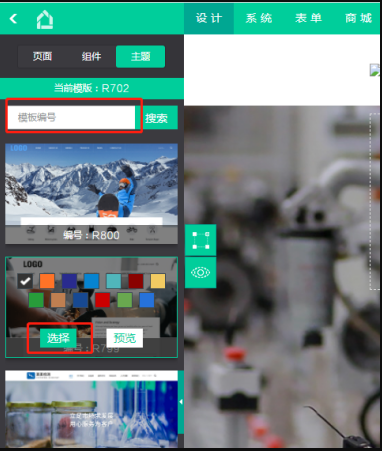
(1) The "Theme" menu on the left side of the design page displays the theme you currently use
(2) Move to Theme Templates, and a pop-up window will appear. Click "Select" to initialize the theme (data will not be overwritten)
(3) Click Theme Color to change the current website theme color (effective within the template you currently use)

2. 刺猬响站2.0
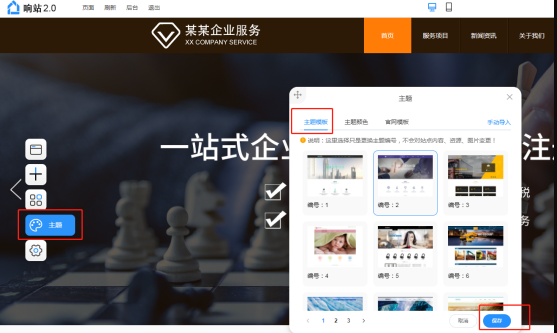
(1) In the design interface, click the "Theme" floating window on the left. In the theme pop-up that appears, the first tab "Theme Templates" lets you change your theme. After selecting, click Save in the lower right corner to change your theme style (data will not be overwritten)

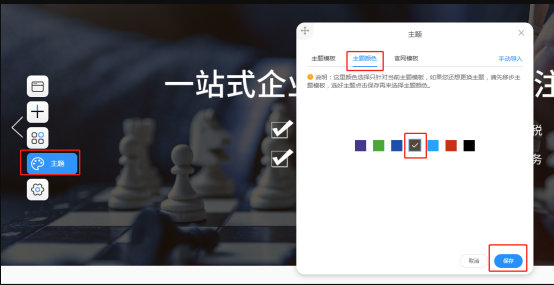
(2) Switch to the Theme Color tab and click the color scheme provided by that theme to change the website theme color (different themes support different theme colors)