新网互联 External Domain Inbound Process
Published: 2024-03-06
If your domain is managed at 新网互联, please use this tutorial for External Inbound.
If your domain is actually managed at 聚名, please refer to the tutorial: https://www.west.cn/faq/list.asp?unid=2539
I. Submit Inbound at Our Company
1. In [Business Management] - [Domain Management] - [External Inbound], enter the domain to be added (enter the top-level domain only), select "新网互联" as the management platform, select a template (if you do not have a template, you can temporarily select a temporary template), and click [Confirm Submit]. See the figure below:
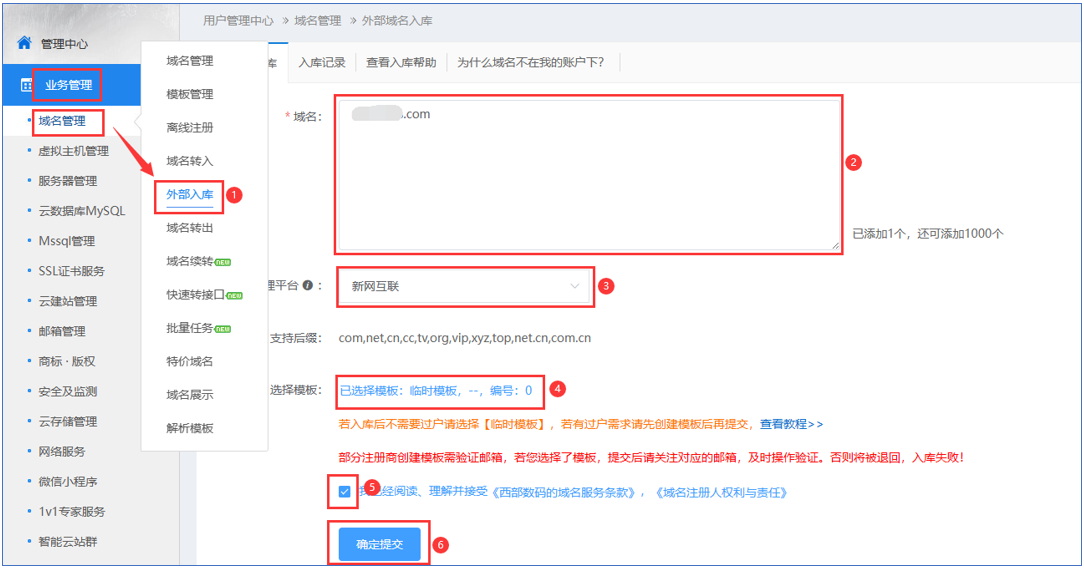
When selecting a template, it is recommended to choose a verified template. If you do not have one, you can first choose a temporary template, and after Inbound, create a template and then transfer the domain (If you need to file for ICP filing, please submit the filing after the transfer is successful). See the figure below:

2. After submission, [Inbound Records] will display the "Transfer Method" and "Our Account". For 新网互联 External Inbound, you need to use the "0-yuan Push" method to push to our account at 新网互联. Our account: agent226.

II. Log in to the 新网互联 website and complete the domain PUSH operation
1. Log in to the management platform on the 新网互联 website. In [Console] - [Domain Management], click [Transfer Member ID PUSH], as shown below:

2. On the [Transfer Member ID PUSH] page, enter the domain(s) to be transferred to our company, enter our receiving member ID (agent226), enter the password protection answer, click [Click to Get Verification Code], enter the SMS verification code received on your phone, check "I agree to the ...", and click [Submit].

III. Confirm the Transfer at Our Company to Complete External Inbound
1. In [Business Management] - [Domain Management] - [External Inbound] - [Inbound Records], click [Confirm push] to complete External Inbound. (Do not click [Confirm push] before the domain has been PUSHed from 新网互联 to our account)
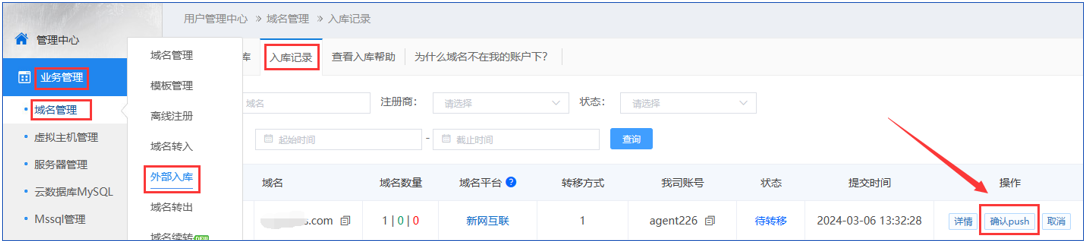
If External Inbound does not succeed for a long time and shows "Processed" or "Pending Transfer", please click [Details] to view the specific reason.
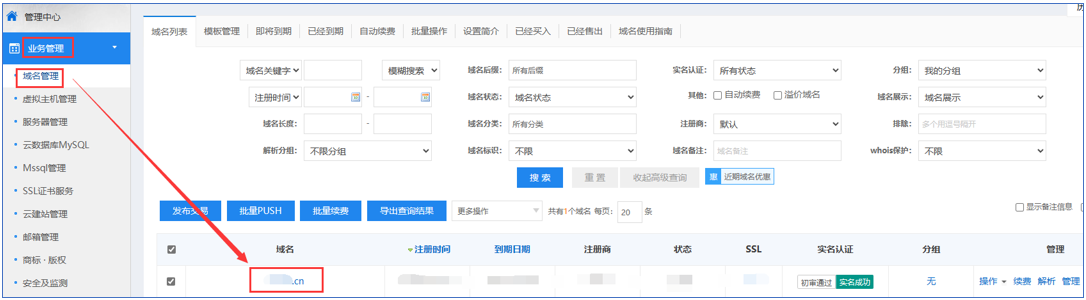
2. After External Inbound is successful, you can view the domains in External Inbound in [Business Management] - [Domain Management] - [Domain List].