Tencent Cloud Domain Name External Inbound Process
Published: 2024-02-02
If the registrar is 腾讯云 and it is managed in 腾讯云, please use this tutorial for external inbound.
If your domain registrar is 腾讯云 but it is managed in 聚名, please refer to the tutorial: https://www.west.cn/faq/list.asp?unid=2539
I. Submit for Inbound at Our Company
1. In [Business Management] - [Domain Management] - [External Inbound], enter the domain to be inbound (just fill in the top-level domain), and select “腾讯云” for the management platform. Select a template (if you do not have a template, you can temporarily select a temporary template), and click [Confirm Submission]. As shown below:
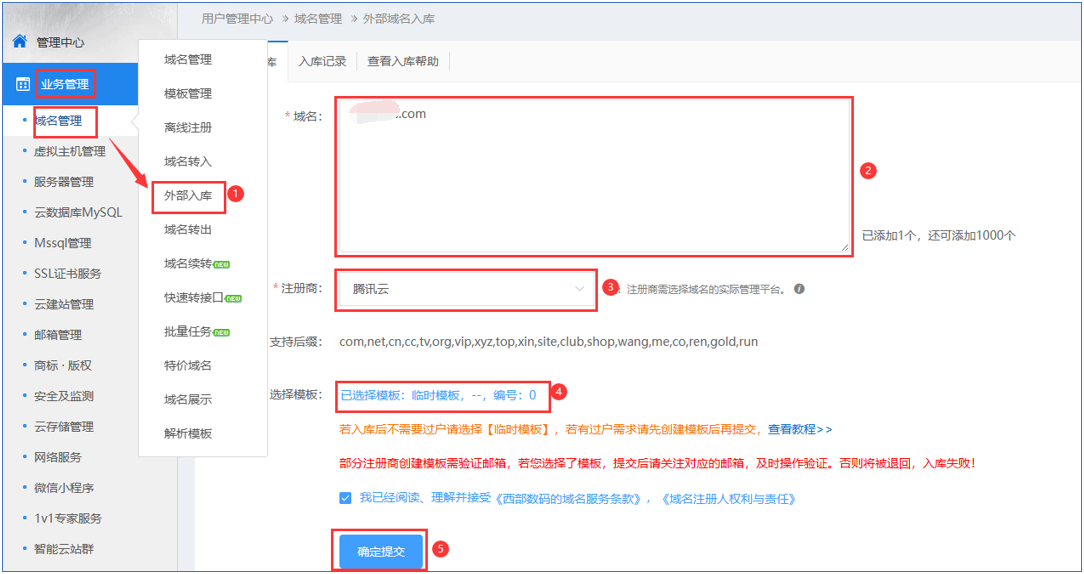
When selecting a template, it is recommended to select a real-name verified template. If you do not have one, you can first select a temporary template; after inbound, create a template and then transfer ownership (if ICP filing is required, please submit the ICP filing only after the ownership transfer is successful). As shown below:

2. After submission is complete, [Inbound Records] will display “Transfer Method” and “Our Account”. 腾讯云 external inbound requires using the “0元Push” method to transfer to our company's account in 腾讯云, Our Account ID: 597341.

II. Log in to the 腾讯云 website, and complete the domain management rights change operation
1. Log in to the console platform on the 腾讯云 website, and under [My Resources], click [Domain Registration]. As shown below:

2. Under [Domain Registration] - [Domain Push], click [I Want to Push]. As shown below:

3. Enter the domain to be pushed and enter our company's Push receiving account (597341). If you want to keep the DNS resolution, please select “Do Not Reset” for DNS resolution, and click [Next]. As shown below:

If you are prompted with “Operation Prohibited”, please disable the security lock function under [My Domains] - [Domain Security]. Disable them in this order: first disable [Update Prohibition Lock], then disable [Transfer Prohibition Lock]. If you are not prompted with “Operation Prohibited”, please skip this step.


4. On the Push confirmation page, confirm the domain to be pushed, and click [Confirm Submission]. As shown below:

III. Confirm the transfer at our company to complete external inbound
1. Under [Business Management] - [Domain Management] - [External Inbound] - [Inbound Records], click [Confirm Push] to complete external inbound. (Before the domain has been Pushed to our company's account in 腾讯云, do not click [Confirm Push])
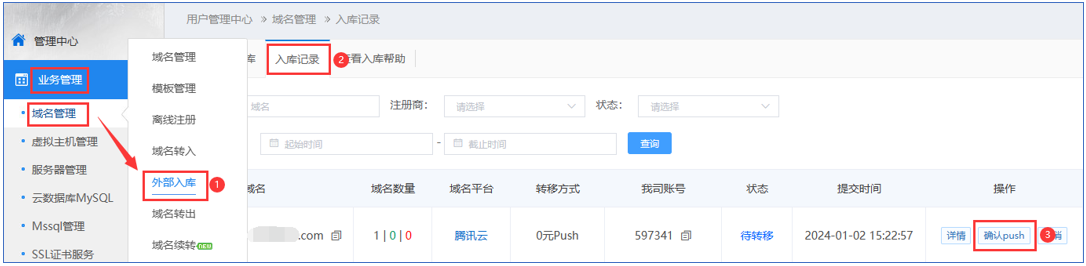
If external inbound has not succeeded after a long time and shows Processed or Pending Transfer, please click [Details] to view the specific reason.
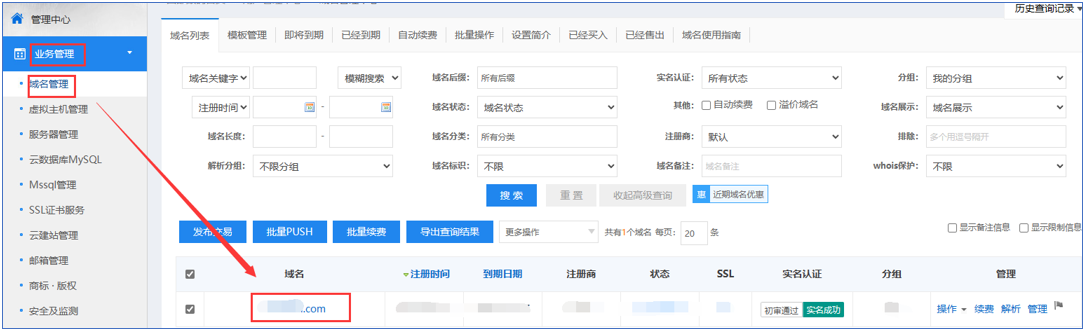
2. After external inbound is successful, you can view the externally inbound domain in [Business Management] - [Domain Management] - [Domain List].