
Finished Website Mobile Website Building Guide
Published: 2014-06-26
The mobile version only supports data calls of webpage, article, product, and image templates from the PC version; other modules such as shopping are not supported
The mobile website is suitable for access and management settings on various popular smartphones, tablets, and PCs. Through simple installation and settings, you can obtain data from WEB websites and quickly create your own corporate mobile website. The mobile website created using this system has the following functions and features:
1. Good browser compatibility; it can be accessed using various smartphones and tablets, and can also be managed and configured on a computer using firefox, chrome, IE9 or above
2. You can set the content source for the homepage and 5 custom columns, and extract specified webpage content, articles, products, images, and other data from WEB websites.
3. Uses a popular mobile website style, with a beautiful interface and 11 color schemes available.
4. Powerful homepage carousel ads, with various carousel effects configurable
5. Uses Baidu Maps; you can easily set the map center point and marker points
6. Provides QR code service; QR code generation is not restricted by the host environment
7. Easily set contact information; when accessed from a mobile phone, you can directly make calls and send SMS messages
Mobile Website System Settings Instructions
When logging into the mobile website system for the first time, please use the Settings button at the top of the mobile website page to configure data:
Settings Select website style, fill in company contact information, fill in SEO settings
Column Select the data type and data source for the homepage and each column (extract content from WEB website)
Carousel Set whether to display homepage carousel ads, select the image source and carousel effect for carousel ads
Map Drag the map to set the map center position; right-click on the map to set marker points
Exit Exit the mobile website management system
By default, every finished website activated by our company comes with a free mobile website. The access address is: http://finished-website-domain/wap, but you must perform simple settings on the mobile site before it can be used; otherwise, when visiting, it will prompt "Current ID does not exist". The specific configuration process is as follows
1. Open the management page [http://finished-website-domain/wap/admin] on a computer, enter the admin password. This password is the same as the admin password for entering the finished website backend, then click "Login" to enter the mobile site management backend.
2. Set contact information
After successful login, click "Settings" - "Contact Information", then enter the company name and contact information for the mobile site, and finally click the "Save Settings" button at the bottom, as shown below

3. Set column information. The key is to set the homepage; if not set, when visiting, it will show "Current ID does not exist"
3.1 Set "Homepage"
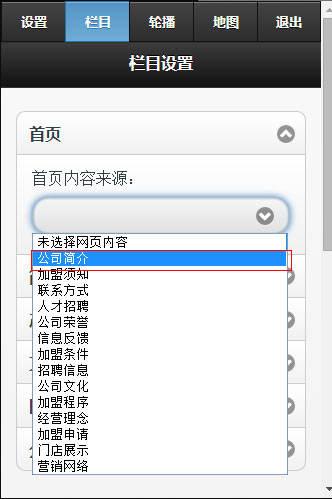
Click "Column" at the top, expand the "Homepage" button, select the homepage source as "Company Profile" (of course, you can also choose your preferred source), and finally click "Save Settings", as shown below.
3.2 Set "Introduction"
Click to expand the "Introduction" button, specify the column name, data type, and data source to be displayed on the mobile site respectively, and finally click "Save Settings", as shown below
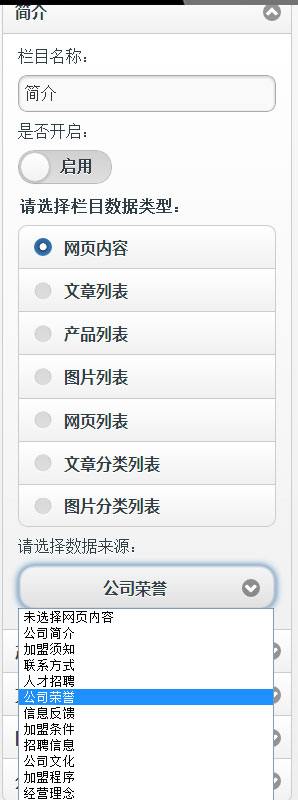
3.3 Other products, articles, images, and categories can be set one by one in the same way as 3.2. Special attention: after setting each item, you must immediately click the "Save Settings" button below to save. Do not set everything and then click save all at once, otherwise previous selections will be lost.
After the above settings, in theory the mobile site can be used. First try accessing it from a computer. If there is no problem, use your phone to scan the QR code in the management center and try opening it.