How to create/add an unassigned disk partition on a VPS/cloud host
Published: 2011-03-25
After upgrading a Linux host, to expand /home, please refer to the process:http://www.west.cn/faq/list.asp?unid=587
1. Automatic script expansion, new disk merged into D drive: http://downinfo.myhostadmin.net/vps/kuorong.bat Download and execute directly
2. New disk merged into D drive manual operation steps
The process for increasing D drive size after expanding a Win host is as follows:
If you do not know how to operate, please submit a ticket and our staff will perform the operation for you. Select the ticket type as: reset disk partitions (merge extra disk into D drive), Linux remount partition, etc. (fees will apply)
First, please check whether virtual memory is set on the partition you want to extend to. If so, cancel virtual memory first and restart.
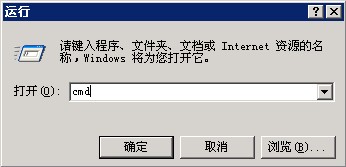
After restarting, click Start -- Run, enter cmd, and enter the command window, as shown in the figure:
Enter the following commands in sequence:
diskpart Enter
list volume Enter (displays volumes; find the D drive volume number, e.g.: Volume 1)
select volume 1 Enter (1 here represents D drive)
extend Enter (means adding all remaining space to D drive)
The operation process is shown in the figure (the red boxes contain the entered commands):
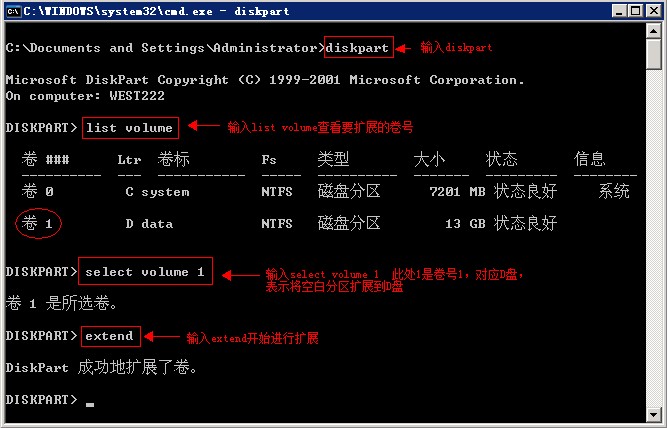
Final prompt: DiskPart successfully extended the volume. This indicates the expansion is complete. Just close the command window and check whether the D drive space has become larger.
3. Steps to assign a separate drive letter to a new disk
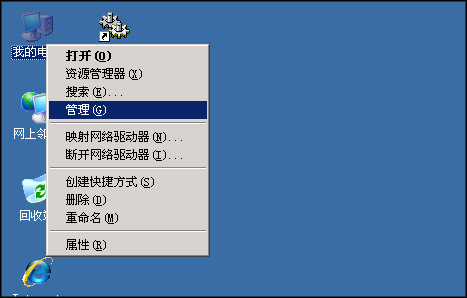
First, remotely log in to the VPS or cloud host, right-click "My Computer" -- "Manage", as shown in the figure:
In Computer Management, click "Disk Management". You can see an "Unallocated" partition on the right (here taking a cloud host as an example), as shown in the figure:
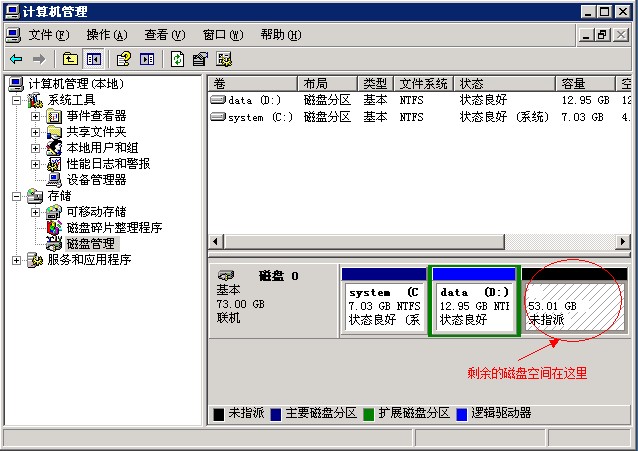
Right-click the "Unallocated" partition and click "New Disk Partition", as shown in the figure: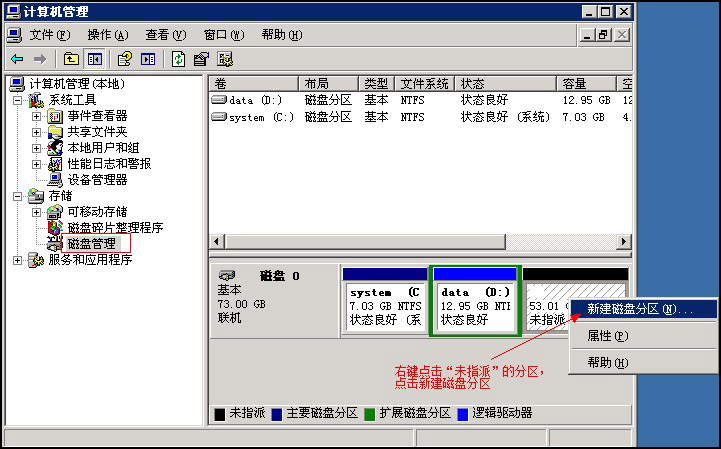
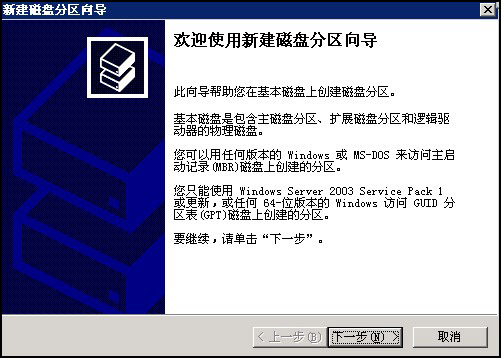
In the "New Disk Partition Wizard", click Next, as shown in the figure:
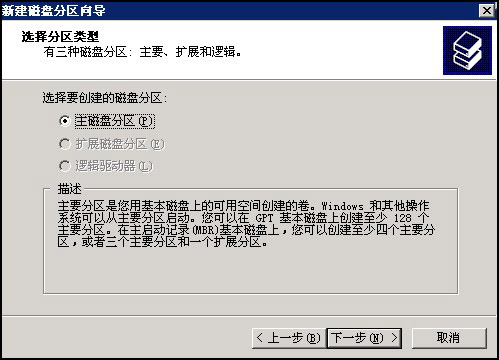
Keep the default "Primary Disk Partition", as shown in the figure:
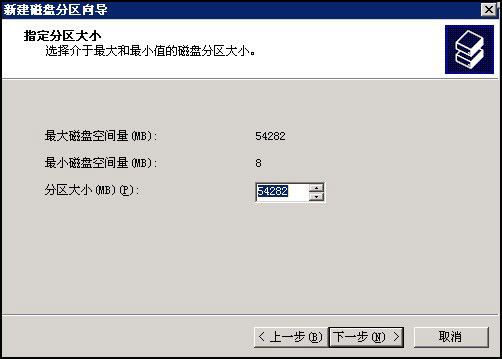
Keep the partition size as default. If you want to divide it into several partitions, you can set it smaller than the default value so that new partitions can be created later. As shown in the figure:
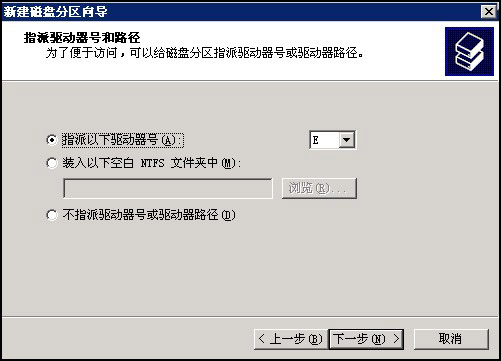
Keep the default drive letter. As shown in the figure:
Format the partition, keep the NTFS file system, and check "Perform a quick format". As shown in the figure: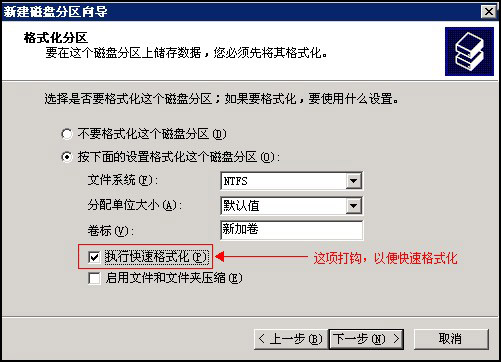
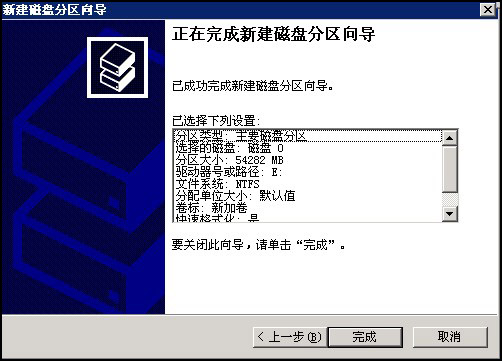
Click Next to complete the operation of creating a new partition. As shown in the figure:
In Disk Management, you can see the newly created partition, as shown in the figure:
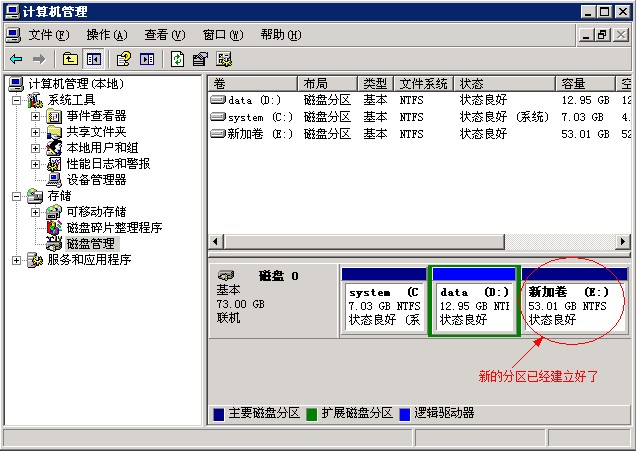
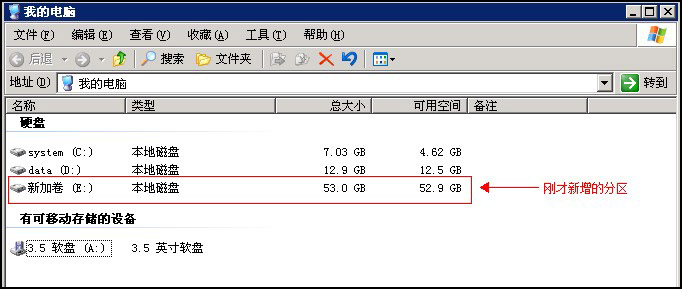
Click "My Computer", and you can also see the newly created partition, as shown in the figure: