
How to transfer data when changing servers for an mssql database?
Published: 2010-12-27
It is strongly recommended to place the Mssql database in the same data center as the website. Remote data calls across data centers will be very slow and unstable.
If your mssql database needs to change data centers, please follow the process below to migrate the database contents:
1. Before upgrading, back up the database first: (During the upgrade process, do not continue writing new data to the original server)
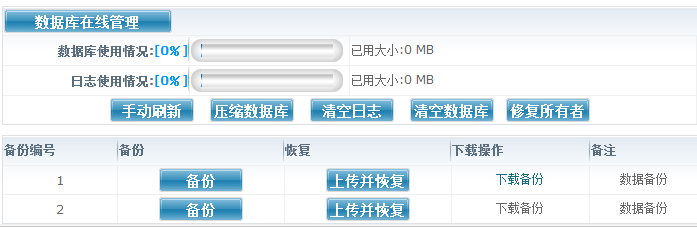
Backup procedure: Log in to Management Center>Mssql Database>Manage
Then click "Backup". After it succeeds, click "Download Backup" to download the database backup in bak format to your local computer.
2. Upgrade: Log in to Management Center>Mssql Database>click "Upgrade"
If you need to increase the database size or change the data center, both can be completed using the "Upgrade" process.
3. After successful upgrade, import data:
Log in to Management Center>Mssql Database>Manage, click "Upload and Restore", and follow the prompts to import the bak backup file downloaded in step 1 online.
4. After successful import, please modify the database configuration file in your website to the new database server address. Then test whether the website runs normally. If a database user permission error occurs, you can fix it using the "Fix Owner" function in the control panel. If there are still problems, please contact our customer service.