
Block User_Agent (UA) access via web.config or .htaccess rule files.
Published: 2025-12-16
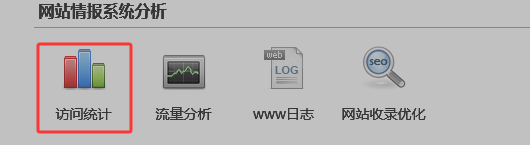
To find the User_Agent with more website visits, you can check it through the "Access Statistics" feature. Log in to the virtual hosting management panel and click "Access Statistics".
Enter the Access Statistics details page-- find "Browsers (Top 10) click: List All/Versions" to view the client (User_Agent) browser versions with a relatively large visit share.


If a specific characteristic accounts for a particularly high proportion, for example, if the User_Agent is Amazonbot and accounts for 90%, and Amazonbot is not very important to our website, you can set up blocking as follows.
To block multiple items, separate them with "|", and this also applies to blocking spider access and crawling. The rules are as follows:
For Linux hosting, add the following rules to the rule file .htaccess (you can manually create the .htaccess file in the site root directory):
<IfModule mod_rewrite.c>
RewriteEngine On
#Block spider
RewriteCond %{HTTP_USER_AGENT} "Bytespider|Amazonbot|YisouSpider|^$" [NC]
RewriteRule !(^robots\.txt$) - [F]
</IfModule>
For Windows hosting, add the following rules to the rule file web.config (you can manually create the web.config file in the site root directory):
<?xml version="1.0" encoding="UTF-8"?>
<configuration>
  <system.webServer>
   <rewrite>
    <rules>
     <rule name="Block spider">
      <match url="(^robots.txt$)" ignoreCase="false" negate="true" />
      <conditions>
      <add input="{HTTP_USER_AGENT}" pattern="Bytespider|Amazonbot|YisouSpider|^$" ignoreCase="true" />
      </conditions>
       <action type="AbortRequest"/>
     </rule>
    </rules>
  </rewrite>
  </system.webServer>
</configuration>
Troubleshooting website traffic overage
apache, iis rules to block and intercept spider crawling
apache, iis block and restrict IP access (applicable to virtual hosting)
apache, iis rules to set up anti-leech protection