
Email migration process for business email from other service providers
Published: 2018-04-23
If you are using another service provider's mail system and need to migrate to our company, please follow the process below for migration.
Email migration requires that the domain of the newly purchased mailbox be consistent with the mailbox account information of the original mailbox. Inconsistency may cause migration failure.
Email migration preparation:
You need to first obtain the account password (at least one) of the mailbox from the other service provider, and the imap/pop3 server alias of the other service provider's mailbox, so that the migration settings below can be completed.
1.Please first purchase an enterprise mail system from our company. When purchasing, please fill in the original mail system domain. If your original number of accounts is 5, please purchase 5 here; if the original number of accounts is 500, please select 500 here.

2.Log in to the newly purchased enterprise mail system and create mailbox accounts. The mailbox accounts must be consistent with the original mailbox accounts.
When creating accounts manually:
Reference tutorial:http://www.yunyou.top/help/detail?id=12
When importing users in batches:
Reference tutorial:http://mail.yunyou.top/help/detail?id=47
3.Domain resolution.https://www.west.cn/faq/list.asp?unid=21 ,
Modify the domain resolution according to these instructions so that normal sending and receiving can be restored as soon as possible on the new mail system.If you do not know the original imap address, it is recommended to first perform step 4 migration and then step 3 modify domain resolution
If the user originally used client software such as foxmail/outlook to send and receive, or does not need to retain emails, migration is not required.
If the user needs to retain the original historical emails, then use the migration function and continue with step 4.
First determine the mailbox migration time (it is recommended to avoid peak email sending and receiving times), and notify all mailbox users in advance that the mailbox will soon be migrated to the new mail system. After the resolution takes effect, please use the new mail system to send and receive emails. If using client software to send and receive emails, it is recommended to suspend using the client to send and receive emails before the resolution takes effect, to avoid missing incoming or outgoing emails due to resolution changes. You can log in viahttp://www.yunyou.top/login to change the initial password, manage the mailbox, and send and receive emails.
4.Start migrating emails. Please use the postmaster account to log in to the enterprise mail system, enter "Mail System Management". Click "Email Migration".

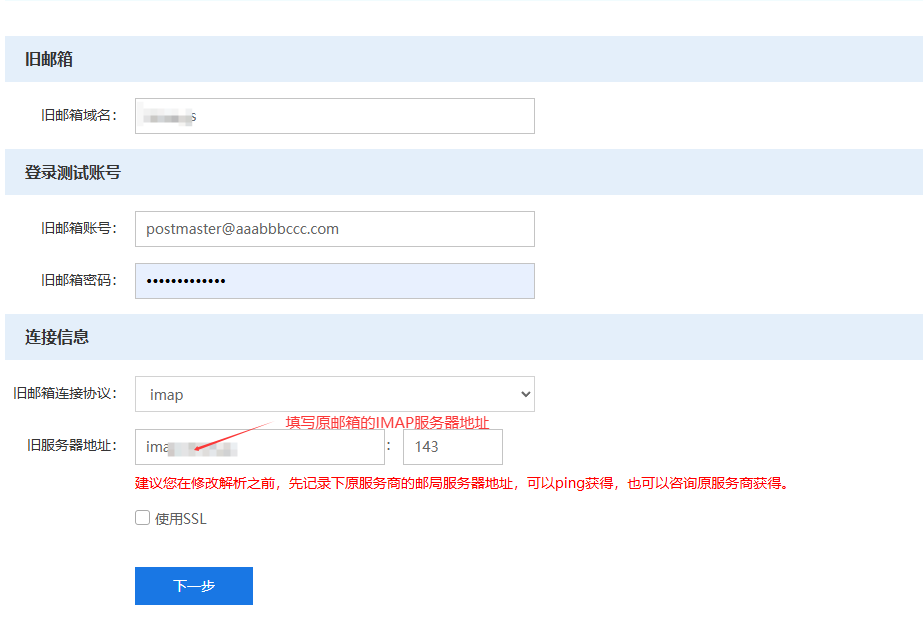
5.In Email Migration, fill in the specified information to add the mailbox to be migrated. After completing, click "Next".
Old mailbox domain:Please keep this item unchanged; it is the current domain.
Old mailbox account/password:Please fill in an old mailbox account and the corresponding password to test whether a normal connection can be made. (It does not necessarily need to be the postmaster account.)
Connection information:Select imap method, and fill in the imap address provided by the original mail system service provider.
Common enterprise mailbox IMAP setting information:https://www.west.cn/faq/list.asp?unid=2132
6.Fill in the migration accounts and start the migration function.
If you do not know all usernames and passwords:Please keep the default selection "Users enter passwords on the front end to start migration".
If you know all usernames and passwords:Please select "Enter user passwords on behalf of users to start migration", separate usernames and passwords with spaces, and fill in one username and password per line.
The migration time is set to 1 month by default. If you are not sure about the amount of migration emails, it is recommended not to modify it.

If the username or password is entered incorrectly, the migration will fail.
For mailboxes with fewer than 3000 emails, migration can normally be completed within 24 hours,
3000<email volume<25000 emails, migration can normally be completed within 7 working days.
7.After email migration starts, this page will be displayed. You can click "View Migration Status" to learn the progress of email migration.

8.Here, all accounts currently being migrated can be displayed, and the status shows "Not Started".

9.A reminder will pop up in user mailbox management that the administrator has started "Email Migration" and will help you import old mailbox emails. Click "Start Migration".
After clicking, the system will pop up a prompt box asking you to enter the old mailbox password. After entering it, the migration will officially start.

If the error shown in the figure below appears, please check whether the entered password is correct, or whether the IMAP function is normal.

10.When the migration officially starts, the system will display as follows:

11.After migration is completed, the system will display the following prompt:

The administrator email migration interface will also have corresponding prompts.

12.When all users have completed migration, you can also manually close the email migration function.
