
Deploy SSL certificates on Linux system for HTTPS single/multiple sites
Published: 2017-03-20
The following tutorial covers applying for an SSL certificate on a linux system and deploying HTTPS for single/multiple sites.If you are not familiar with the technical details, it is recommended to submit a ticket, and our engineers will configure it for you (charges will apply).
4.Non-preinstalled Environment Deployment
Step 1: Apply for a certificate. Application Link . Certificate Application Process.
Step 2: After the application is successful, download and extract the certificate.

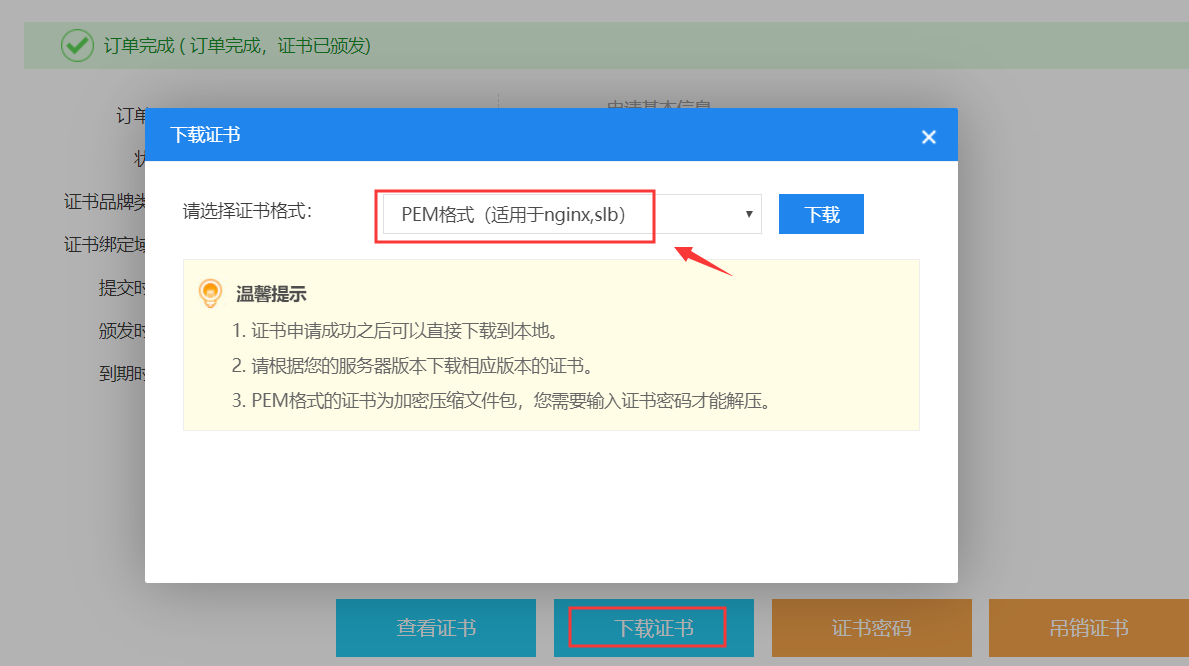
Click "Details" to download the certificate locally and extract it. When downloading the certificate, select the nginx,slb version.
Step 3: Deploy
宝塔面板:

Edit the site on the 宝塔面板, click SSL, open the downloaded certificate with Notepad, copy the corresponding content, save, and then restart the web service.
wdcp Panel:
I. Install our company's default wdcp environment; tutorials are provided for v3.2 and v2.5.
Description: The nginx web engine can deploy one or more sites and supports apache+nginx hybrid mode without affecting any previous apache engine settings (such as pseudo-static, .htaccess rules, etc.). The following tutorial is based on the linux+apache+nginx engine.
1. The system template for wdcp v3.2 (linux+apache+nginx) is:
Currently, wdcp v3.2 defaults to the nginx+apache engine. Users can log in to the wdcp interface and do it themselves; the setup is very simple.
A. First apply, download, and extract the SSL certificate to your local computer. Then log in to the wdcp control panel, click Website Management > SSL Certificate Management > Upload certificate crt and key. The certificate name must be the same as the created site name, as shown in the figure:

Note:
1.The certificate file name must be the same as the site domain name to successfully deploy HTTPS (refer to the attached figure).


B. Click Website Management > Site List, edit, and directly enable it.

You can repeat the above two steps for all sites.
II. Manual deployment method for non-default environments (for reference only; because actual environments differ, adjust according to actual conditions).
1. Deploying SSL Certificate on Apache
a. Check whether apache has SSL enabled (Particularly note that you must addListen 443 in the apache configuration file; otherwise there will be no 443 port listening)
Open the apache installation directory/conf/httpd.conf file and find the two lines inside
#LoadModule ssl_module modules/mod_ssl.so
Remove the # at the beginning of the line and save the file.
Execute the command: apache installation directory/bin/httpd -M | grep ssl_module . If the result shown below appears, apache already supports SSL; otherwise, enable apache's SSL module first.

b. Configure the certificate for the corresponding site.
Edit the site configuration file corresponding to the site (for example: /conf/vhosts.conf), and modify the content as follows:
<VirtualHost www.domain.com:443>
DocumentRoot "/var/www/html"
ServerName www.domain.com
SSLEngine on
SSLCertificateFile certificate file path/_www.domain.com.cer
SSLCertificateKeyFile certificate file path/_www.domain.com.key
SSLCertificateChainFile certificate file path/_www.domain.com_ca.crt # corresponds to the bundle file of apache in wdcp
</VirtualHost>
c. Restart apache for it to take effect.
2. Nginx Deploying SSL Certificate (pay special attention to the red content below: if the certificate files include .crt and .cer files, you need to merge the .crt and .cer files first. If there is only a .crt file, this is not required.)
a. Check whether nginx has SSL enabled.
Execute the command: nginx installation directory/sbin/nginx -V, and check whether the command result contains "--with-http_ssl_module"; otherwise, install the SSL module first.
b. Configure the certificate for the corresponding site.
Edit the site configuration file corresponding to the site, and add or modify the following content:
server {
listen 443 ssl; # Change the original 80 to 443
...
root /www/web/xxxx/public_html;
ssl_certificate certificate file path/_www.domain.com.crt; # Copy the content of _www.domain.com.cer to the beginning of this file; do not leave blank lines in between.
ssl_certificate_key certificate file path/_www.domain.com.key; # Certificate key file
ssl_protocols TLSv1 TLSv1.1 TLSv1.2;
ssl_ciphers ALL:!DH:!EXPORT:!RC4:+HIGH:+MEDIUM:!LOW:!aNULL:!eNULL;
...
}
III. Tomcat Certificate Deployment
a. Certificate conversion: execute under the java installation directory bin:
keytool -importkeystore -v -srckeystore original jks path -srcstoretype pkcs12 -srcstorepass certificate password -destkeystore generated new certificate path -deststoretype jks -deststorepass new certificate password
You can also use https://www.ssleye.com/ssltool/jks_pkcs12.html for online conversion; select PKCS12 to JKS.
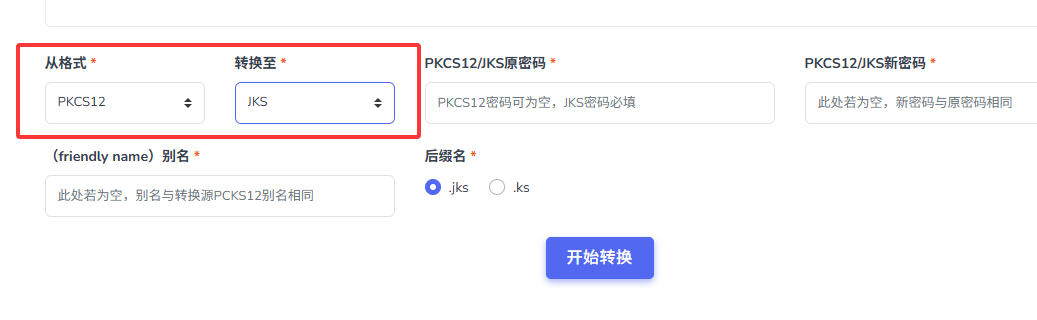
Place the generated jks file in the conf directory.
Configure the SSL connector
Place the www.domain.com.jks file in the conf directory, then configure the server.xml file in the same directory, and add the following content:
<Connector
port="443"
protocol="HTTP/1.1"
tomcat8 needs to use "protocol="org.apache.coyote.http11.Http11Protocol"
SSLEnabled="true"
maxThreads="150"
scheme="https"
secure="true"
keystoreFile="conf\www.domain.com.jks"
keystorePass="changeit"
clientAuth="false" sslProtocol="TLS"
/>
Description
clientAuthIf set to true, it means Tomcat requires all SSL clients to present security certificates and authenticates SSL clients.
keystoreFileSpecifies the storage location of the keystore file. You can specify an absolute path or a relative path relative to the (Tomcat installation directory) environment variable. If this item is not set, by default Tomcat will read a file named “.keystore” from the user directory of the current operating system user.
keystorePasskeystore password, specifying the password of the keystore. (If you filled in a private key password when applying for the certificate, the keystore password is the private key password.)
sslProtocolSpecifies the encryption/decryption protocol used by the socket (Socket); the default value is TLS.
b. Configuration of certificates for multiple domains
<Connector port="443" protocol="org.apache.coyote.http11.Http11NioProtocol" defaultSSLHostConfigName="www.aaa.com" maxThreads="150" SSLEnabled="true">
<SSLHostConfig hostName="www.aaa.com">
<Certificate certificateKeystoreFile="conf/SHA256withRSA_www.aaa.com.jks" certificateKeyAlias="www.aaa.com"
certificateKeystorePassword="tyson1314"
type="RSA" />
</SSLHostConfig>
<SSLHostConfig hostName="www.bbb.com">
<Certificate certificateKeystoreFile="conf/SHA256withRSA_www.bbb.com.jks" certificateKeyAlias="www.bbb.com"
certificateKeystorePassword="dIVVMxg"
type="RSA" />
</SSLHostConfig>
</Connector>
c. Secure configuration for automatically redirecting HTTP to HTTPS
Go to web.xml in the conf directory. After </welcome-file-list>, before </web-app>, that is, in the second-to-last section, add the following section:
<web-resource-collection > <web-resource-name >SSL</web-resource-name> <url-pattern>/*</url-pattern> </web-resource-collection> <user-data-constraint> <transport-guarantee>CONFIDENTIAL</transport-guarantee> </user-data-constraint>
The purpose of this step is to make the non-SSL connector redirect to the SSL connector. So you also need to go to server.xml for configuration:
<Connector port="8080" protocol="HTTP/1.1" connectionTimeout="20000" redirectPort="443" />
Change redirectPort to port 443 of the SSL connector; it will take effect after restart.
The above content comes from the Internet and is for reference only.If you are not familiar with the technical details, it is recommended to submit a ticket, and our engineers will configure it for you (charges will apply).
Related links:
A. Deploying HTTPS for single/multiple sites with SSL in windows2008+iis7 environment
B. Deploying HTTPS for a single site with SSL on windows2003 system
C. Deploy HTTPS certificate on win2012+iis8 (supports multiple sites)
D. Deploy HTTPS certificate on 宝塔面板
After deploying HTTPS (SSL), set up a 301 redirect to redirect HTTP to HTTPS
For deployment on Hong Kong IP in 亚数机房, please click to refer to this tutorial